


 Video Converter Ultimate
 Screen Recorder
 Video Repair
 Secure Download
FBX Game Recorder + Best Alternative [In-Depth Review]
Are you a gamer who’s curious about FBX Game Recorder? Well, most gamers screen record their gaming experience for whatever reasons they have, so if you’re keeping an eye to FBX, continue reading!
In this review, we’ll dive deep into what makes FBX Game Recorder stand out, its key features, performance, compatibility, and user experience. You’ll also discover its pros and cons and the best alternative to consider if this screen recording tool doesn’t quite meet your needs. So, before hitting that record button, let’s find out whether FBX Game Recorder is truly worth it for your gaming setup. Let’s get started!

Part 1. FBX Game Recorder Review
FBX Game Recorder is a performance-driven screen recording and live-streaming software built specifically for gamers. It uses advanced hardware acceleration from NVIDIA, AMD, and Intel, allowing users to record or stream their gameplay smoothly without frame drops or lag.
Unlike standard screen recorders, this screen recorder tool is optimized for gaming. It supports HD and 4K recording, instant replay capture, and highlight saving even while playing. Because it runs quietly in the background, it doesn’t interfere with your system’s performance, making it ideal for someone who needs seamless recording while gaming.
Main Features:
• Utilizes NVIDIA, AMD, and Intel technologies.
• Supports HD and 4K resolution recording.
• Live streaming support.
• Background recording.
• Offers basic video editing features.
Pros
- Smooth recording even during high-performance gaming.
- The interface is simple and very user-friendly.
- Supports multiple hardware acceleration options.
- Can record and live stream at the same time.
Cons
- Limited advanced editing tools.
- Some features can be accessed in paid plans.
- There’s a watermark in the free version.
- Limited OS support.
Verdict:
There is no doubt that FBX Game Recorder is a great game screen recording tool. It is easy to use, lightweight, and highly performative. However, it also has some limitations, like limited screen recording and editing features in the free plan. Lastly, it might be great that this supports Windows, but other operating systems like macOS can’t use this specific screen recording tool.
Part 2. Is FBX Game Recorder Safe?
Yes, FBX Game Recorder is safe to use as long as you download it from its official website. It’s made by a trusted developer and has no reports of viruses or malware. Just make sure not to get it from third-party sites, as those may include unwanted programs. Like other screen recorders, FBX will ask for permission to access your screen and audio, which is normal. Overall, it’s a secure and reliable tool for recording and streaming your gameplay.
Part 3. How to Use FBX Game Recorder
Now that you know what FBX Game Recorder is, it’s time to learn how it is used to record your gaming experience.
Step 1. First, you need to download and install the tool from their official website.
Step 2. Now, once it is installed, open the tool. From there, go to the Settings section of the tool to set up the FBX hotkeys. After that, assign shortcut keys for starting and stopping the recording.
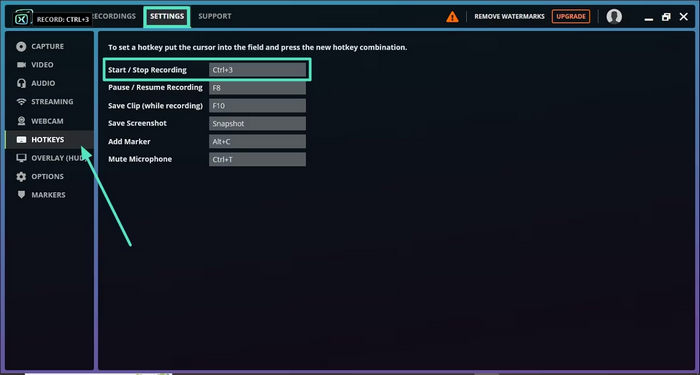
Step 3. Launch your game and press the assigned hotkeys to begin recording, as well as press the same hotkeys again to stop recording.
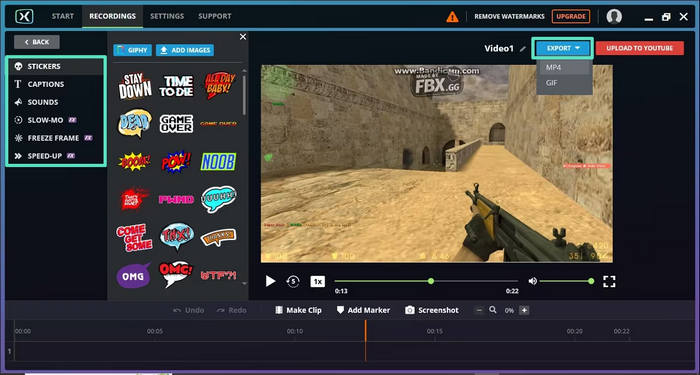
Step 4. If you want to be more creative with the result of your screen recording, you can add effects, captions, or speed adjustments to your game screen recording video.
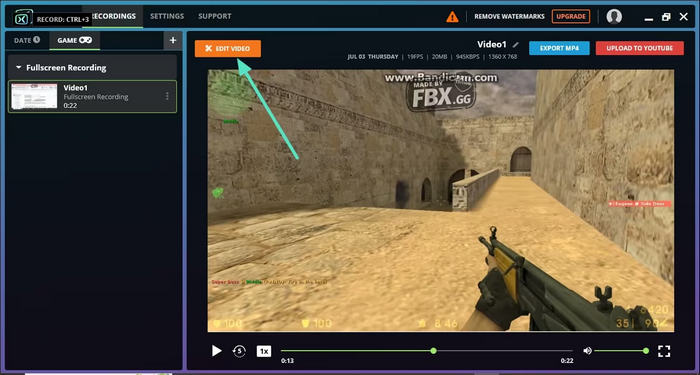
Step 5. Once everything is done, click the Export button and choose your preferred file format and resolution to download it.
Part 4. Best Alternative to FBX Game Recorder
Now that you know what FBX is and how it is different from other screen recording tools. In case you feel like it’s not enough, there’s an alternative tool that you can try. The FVC Screen Recorder is the best alternative to FBX Screen Recorder. With this tool, you can record your screen, you can take screenshots, edit, and annotate them. Also, it works on both Windows and macOS, giving users the flexibility to use it regardless of their operating system. Moreover, this screen recording tool supports system audio, microphone input, and even webcam recording, which makes it a great choice for online meetings, video tutorials, and game recordings.
Main Features:
• Allows you to record either full screen, selected window, or custom area.
• Record video calls, meetings, gameplay, and online classes
• Allows adding text, lines, highlights, and shapes while recording.
• Can record both system audio and microphone voice.
• Supports various video and audio output formats.
• Screen record videos in HD.
• Available for both Windows and macOS
Steps on How to Use FVC Screen Recorder:
Step 1. Download and install FVC Screen Recorder on your computer.
Free DownloadFor Windows 7 or laterSecure Download
Free DownloadFor MacOS 10.7 or laterSecure Download
Step 2. Launch the program and select Game Recorder to begin capturing your Fortnite gameplay.
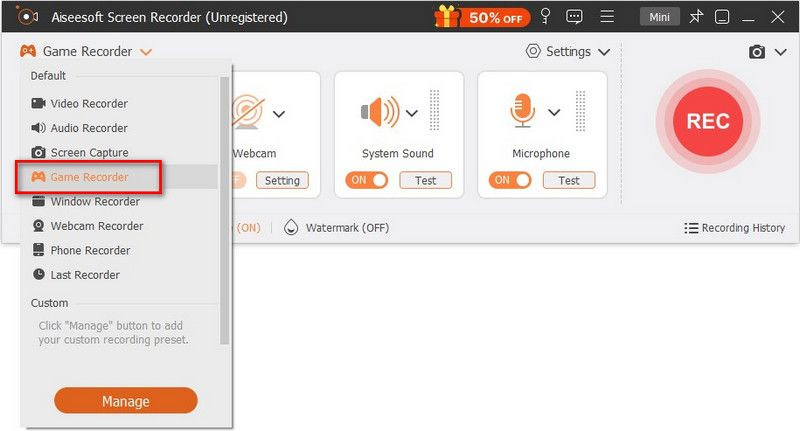
Step 3. In the Select the Game panel, click the drop-down arrow and choose Fortnite from the list of running games. You can also enable System Sound, Microphone, or both if you want in-game sound and voice commentary.

Step 4. nce everything is ready, click REC to start recording your gameplay.

Step 5. When you’re finished, click Stop, then select Export to save your recorded Fortnite clip.
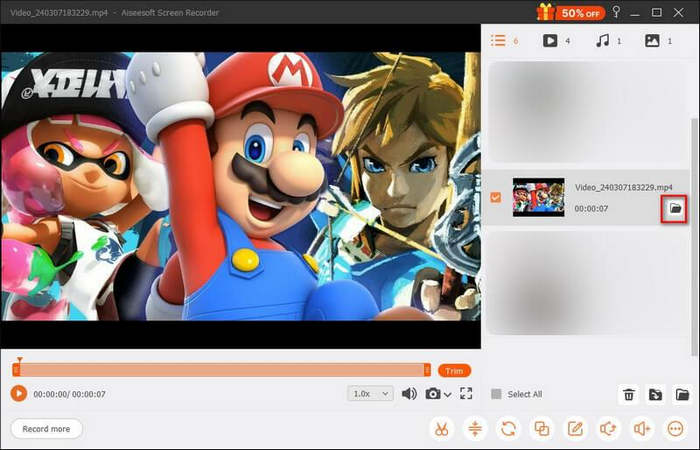
FVC Screen Recorder is the best alternative to FBX Game Recorder because it’s simple, flexible, and works on both Windows and macOS. Unlike FBX, it’s not limited to gaming, as you can also use it for other screen recording needs.
With its easy controls and HD output, FVC Screen Recorder is a great all-around tool for anyone who wants smooth and high-quality screen recordings.
Part 5. FAQs about FBX Game Recorder
Is FBX Game Recorder free to use?
Yes, FBX Game Recorder offers a free version that lets you record gameplay with basic features. However, the free version adds a watermark to your videos and limits some advanced options. To remove these restrictions, you can upgrade to the paid plan.
Can FBX Game Recorder capture in 4K quality?
Yes, FBX Game Recorder supports recording in HD and up to 4K resolution, depending on your system’s hardware capabilities. It uses hardware acceleration to ensure smooth and high-quality recording without lag.
Does FBX Game Recorder work on macOS?
No, FBX Game Recorder is currently only available for Windows. If you’re using a Mac, you can try FVC Screen Recorder, which offers similar features and works on both Windows and macOS.
Can I live stream with FBX Game Recorder?
Yes, FBX Game Recorder allows users to live stream gameplay directly to popular platforms like Twitch, YouTube, and Facebook. It also provides options for customizing your stream settings and quality.
Conclusion
FBX Game Recorder stands out as a solid choice for gamers who want smooth, high-quality recording without affecting game performance. Its hardware acceleration and simple interface make it ideal for capturing gameplay moments or live streaming with ease. Still, since it’s limited to Windows and lacks some editing tools, it might not fit everyone’s needs. That’s where FVC Screen Recorder comes in, as it offers more flexibility, cross-platform support, and added features like annotations, webcam capture, and multiple audio sources. If you’re looking for a screen recorder that’s just as powerful but more versatile, FVC Screen Recorder should be on your list.
-
 Find out How to Use the Snipping Tool on a Mac: All Steps
 If you want to know how to use the snipping tool on Mac, don't miss this post. We have prepared everything you need to know and detailed steps guide here.
-
 Find Out Free PC Games Download Sites: 6 Options for You
 If you are ready to enjoy exciting computer games but don't know where to download resources, check out this guide. Here are 6 free PC games download sites.
-
 How to Fix Print Screen Not Working on Windows 10/11
 Having trouble taking screenshots? Here's how to fix Print Screen not working on Windows 10/11 with easy steps like driver updates and setting checks.
