


 Video Converter Ultimate
 Screen Recorder
 Video Repair
 Secure Download
How to Fix if the Xbox Game Bar Captured Greyed Out?
It can really be frustrating when the Xbox Game Bar capture option suddenly turns greyed out, especially when you need to record gameplay or simply your screen activity. This issue often happens due to various reasons, but don’t worry, when your Xbox Game Bar captures greyed out, there are ways to easily fix it.
In this article, you will be guided on the most common reasons why Xbox Game Bar capture is greyed out and provide simple, step-by-step solutions to get it working again. And if nothing works, we’ll also introduce a reliable alternative that you can use right away. Continue reading to find the exact fix that works for your situation and get your recording feature back on track.
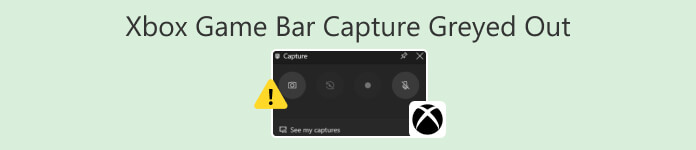
Part 1. What is the Xbox GameBar?
Xbox Game Bar is a built-in tool in Windows that lets you record your screen, capture gameplay, take screenshots, and monitor system performance without needing extra software.
It’s designed mainly for gamers, but it’s also useful for:
- • recording tutorials.
- • capturing on-screen activity.
- • quick screen recording without installing anything.
Part 2. What To Do When the Xbox GameBar Capture Greyed Out?
Before diving into the detailed solutions to fix the Xbox GameBar capture greyed out issue, it’s helpful to get a quick overview of what might be causing it.
The table below provides a brief overview of the most common causes along with their corresponding fixes, so you can quickly get an idea of what to check first. Keep in mind that this is only a general guide. Each method will be explained in more detail in the following sections to help you apply the right solution effectively.
| Reasons Why Xbox Game Bar Capture Greyed Out | Simple Fix |
| The Record what happened option is disabled | Enable it in Settings > Gaming > Captures |
| Microphone access is turned off | Turn on microphone access in Privacy & Security settings |
| The graphics card does not support recording | Check GPU compatibility or upgrade if needed |
| Outdated graphics drivers | Update your NVIDIA, AMD, or Intel drivers |
| Game Recording is disabled in the Group Policy | Enable it in the Group Policy Editor |
| Xbox Game Bar still not working | Use a reliable third-party screen recorder |
Now that you have an overview, let’s go through each solution step by step to help you fix the Xbox Game Bar capture greyed out issue:
Method 1: Ensure that the Record What Happened is Toggled on
This method checks if the Xbox Game Bar recording feature is enabled in your system settings. If this option is turned off, the Xbox GameBar capture will be greyed out. Enabling it allows Game Bar to record your screen as expected.
Step 1. First, on your computer, go to Settings, look for Gaming, and select Captures.
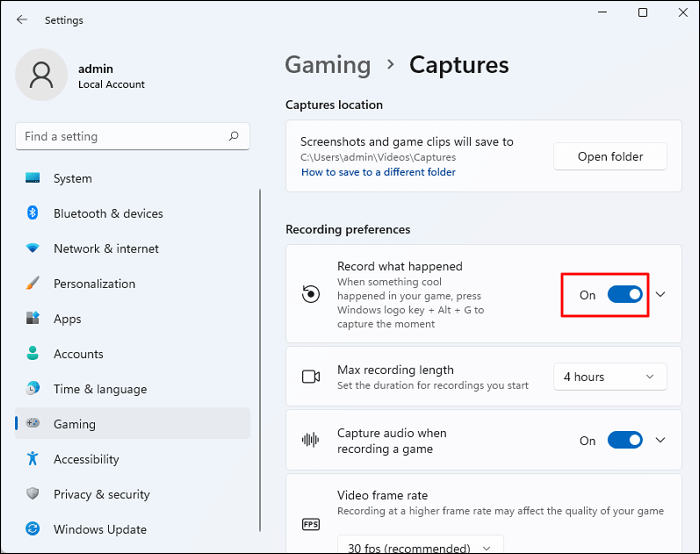
Step 2. From there, toggle on Record what happened if you’re using Windows 11 or Record in the background while I'm playing a game in Windows 10.
Step 3. Lastly, restart your game and test the capture button again.
Method 2: Make Sure Your Microphone Access is On
In some cases, restricted permissions can cause the capture feature to become unavailable. This method ensures that your system allows apps, including Xbox Game Bar, to access your microphone and related recording functions. Enabling these permissions can help avoid the Xbox GameBar greyed out captures.
Step 1. First, go to Settings, look for Privacy & Security, and choose Microphone.
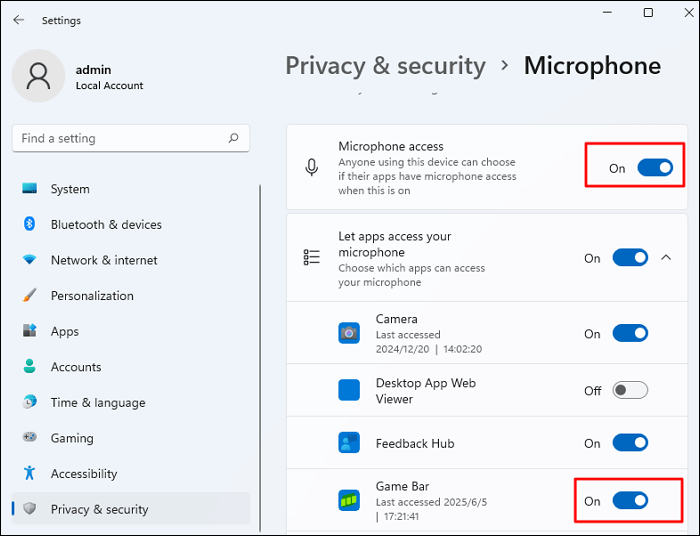
Step 2. From there, make sure the toggle for Microphone access is On.
Step 3. After that, scroll down and ensure the Game Bar is enabled.
Step 4. Lastly, restart your computer and test the capture button again.
Method 3: Change to a New Graphics Card
Xbox Game Bar relies on your system’s graphics hardware to record properly. If your current graphics card is outdated or unsupported, the Xbox GameBar capture feature may be greyed out. This method helps you set your system to use a more compatible or high-performance graphics card.
Step 1. Open Settings on your computer.
Step 2. Go to System, select Display, and click Graphics.
Step 3. Select an existing app or click Browse to add a new one.
Step 4. Click the app and choose Options.
Step 5. Select High performance to set it to your new graphics card.
Method 4: Check the Nvidia/AMD/Intel Drivers
Outdated or missing graphics drivers can prevent the Xbox Game Bar from working correctly. This method focuses on updating your drivers to ensure your system can support screen recording and other Game Bar features without issues.
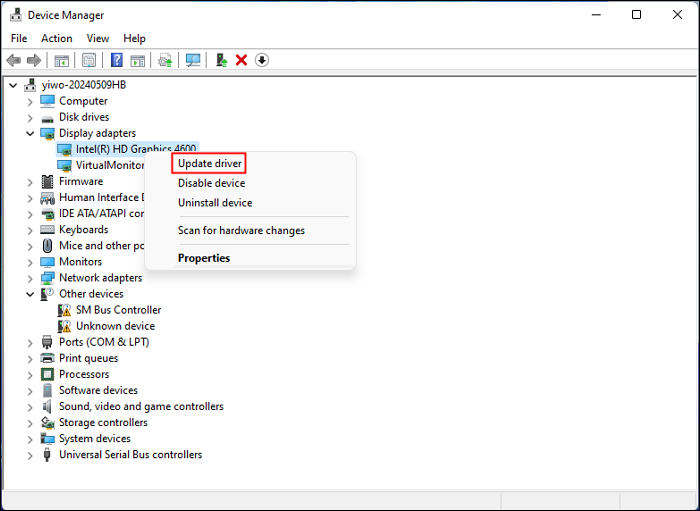
Step 1. Right-click the Windows icon and choose Device Manager from the menu.
Step 2. Expand the Display adapters section by clicking the arrow beside it. Then, right-click your graphics driver and select Update driver.
Step 3. After that, choose the Search automatically for drivers.
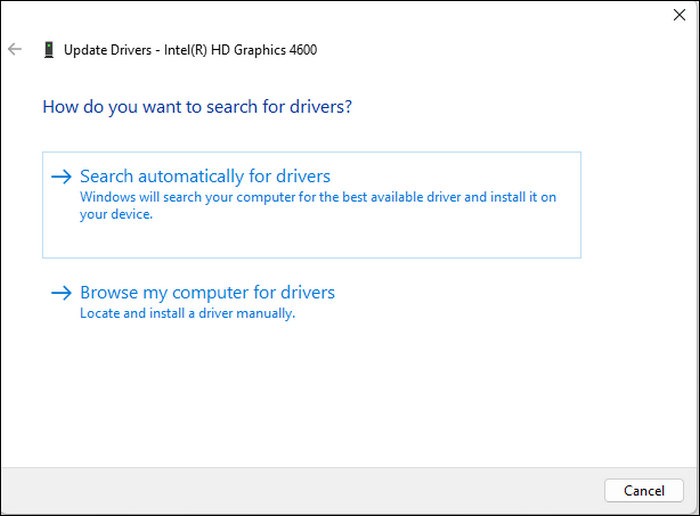
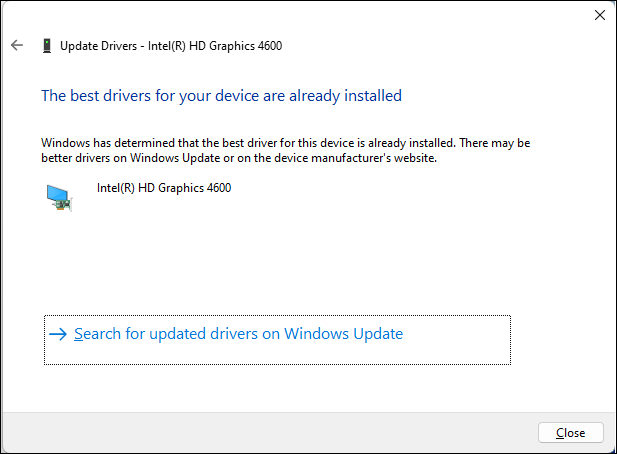
Now, Windows will look for and install the most suitable driver for your system.
Step 4. After the update, open Xbox Game Bar again and check if the Capture option is now available.
Method 5: Enables or Disables Windows Game Recording and Broadcasting
Windows may disable recording features through system policies or settings. This method involves checking and adjusting the Game Recording and Broadcasting settings to make sure Xbox Game Bar is allowed to record your screen.
Step 1. First, right-click on the Windows logo on your computer.
Step 2. Next, choose the Settings option from the context menu.
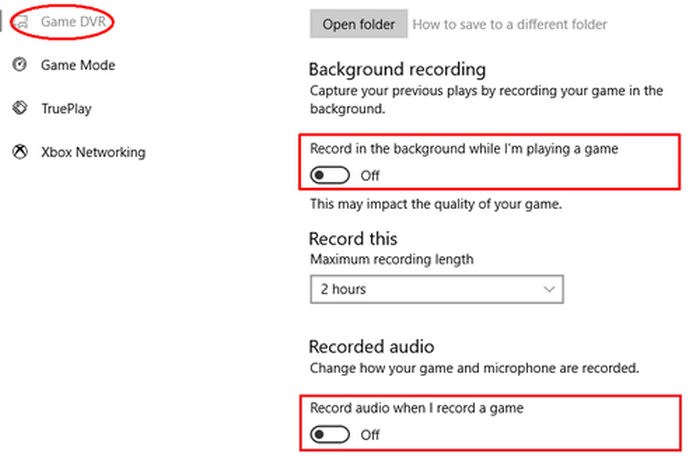
Step 3. After that, select the Gaming option from the Windows Settings window, and shift to Game DVR in the left panel.
Step 4. Next, find the switch under the option Record in the background while I’m playing a game. Click the switch to turn it off.
Method 6: Using an Alternative Tool to Screen Record
Now, if any FVC Screen Recorder is a reliable screen recording tool that you can use as an alternative if the Xbox Game Bar capture is greyed out. While it doesn’t directly fix the issue, it provides an easy and effective way to record your screen without system limitations.
With this tool, you can quickly capture your screen for tutorials, gameplay, video meetings, or any on-screen activity. It offers a smooth recording experience, making it a convenient backup option when the built-in Game Bar fails to work properly.
Main Features
- • Record screen activity for tutorials, gameplay, video conferences, and lectures.
- • Record video with system sound, microphone voice, or both.
- • Add a webcam overlay while recording gameplay or presentations.
- • Mirror and record iPhone or Android screens on a computer.
- • Take screenshots, including scrolling window captures.
- • Draw or annotate on the screen during recording using tools like brush and pencil.
- • Edit and trim recordings before saving.
- • Export videos in popular formats like MP4, MOV, MKV, and AVI.
- • Save audio recordings in MP3, M4A, WMA, FLAC, and more.
Here’s how to capture gameplay on PC using the FVC Screen Recorder:
Step 1. Download and install the FVC Screen Recorder on your computer. It is available for Windows and macOS.
Free DownloadFor Windows 7 or laterSecure Download
Free DownloadFor MacOS 10.7 or laterSecure Download
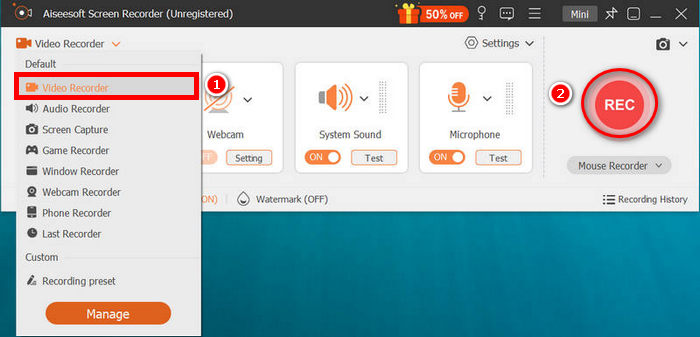
Step 2. After that, launch the tool and click the REC button to start recording your screen. You can choose the size or method of recording your screen. Once you’re done, just click the stop button.
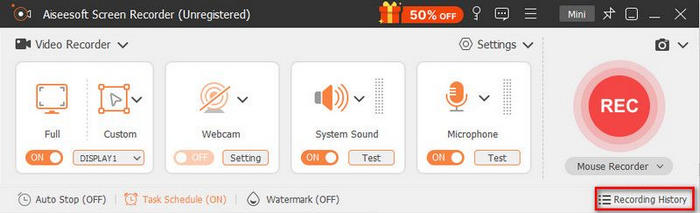
Step 3. Now, you have options to edit the video. Once you’re satisfied, click the Import button to save your recorded video.
Part 3. FAQs about the Xbox Game Bar Capture Greyed Out Problem
Do I need a special graphics card to use Xbox Game Bar?
Not necessarily, but your graphics card must support screen recording. If it’s too old or incompatible, the capture feature may appear greyed out.
Can I use Xbox Game Bar without enabling microphone access?
Yes, but some recording features may not work properly. It’s recommended to enable microphone access to avoid issues with capture and recording.
Why does Xbox Game Bar work in some apps but not others?
Some apps, especially system-level or restricted apps, may block recording. In such cases, the capture option may appear greyed out.
Conclusion
In conclusion, the Xbox Game Bar capture greyed out issue is often caused by simple settings, permission restrictions, outdated drivers, or system limitations. By applying the fixes discussed in this guide, you can quickly restore the capture feature and continue recording your screen without problems. If the issue persists, using an alternative screen recorder like the FVC Screen Recorder is the best way to resolve the issue indirectly.
-
 Adobe Captivate Review: Here’s What You Need to Know
 For sure, you’re also one of those who wonder what Adobe Captivate is. In this article, learn what it is, what it is for, and if it is worth its price.
-
 How to Easily Record Screen Using VLC [Complete Guide]
 If you’re wondering how to record your screen using the VLC screen record feature, don’t fret! This article will teach you four easy ways to do it like a pro.
-
 10 Best Screen Recorders With No Limit Time: Pros & Cons
 If you want to quickly pick screen-recorder-no-limit-time, read this post. We've shortlisted 10 options for you to consider. Come to check their performance.
