


 Video Converter Ultimate
 Screen Recorder
 Video Repair
 Secure Download
Movavi Video Converter Review: Features, Pros & Cons
Movavi Video Converter is a must-consider option among desktop format converters: its compatibility, professional capabilities, and comprehensive features - which cater to a wide range of video editing scenarios - make it the top choice for many users worldwide. Have these advantages caught your attention? Would you like to try using it to create the video you need?
Before deciding whether to download it, you may want to do some detailed research online - we've prepared this Movavi Video Converter review for you, covering everything you need to know: features, pros, cons, pricing, and alternatives. Read on to see if this information can help you!

How We Test and Review
- • We will devote sufficient time to evaluating Movavi Video Converter’s performance across all aspects to determine whether it meets the criteria of a top-tier video converter.
- • We will incorporate feedback from a wide range of users to provide the most objective assessment – covering not only its strengths but also its current shortcomings – to help you make an informed decision.
- • We will explore and test several competing products with similar features to Movavi Video Converter, and through a side-by-side comparison, determine whether this software meets users’ expectations for this type of software.
Part 1. Movavi Video Converter Review
The name Movavi Video Converter for Windows & Mac already gives away its main purpose: converting videos between different formats. In the following sections, let's take a closer look at what it can do around this core function. And since Movavi Video Converter is also known for its wide range of features, we'll cover some of its useful extras along the way.
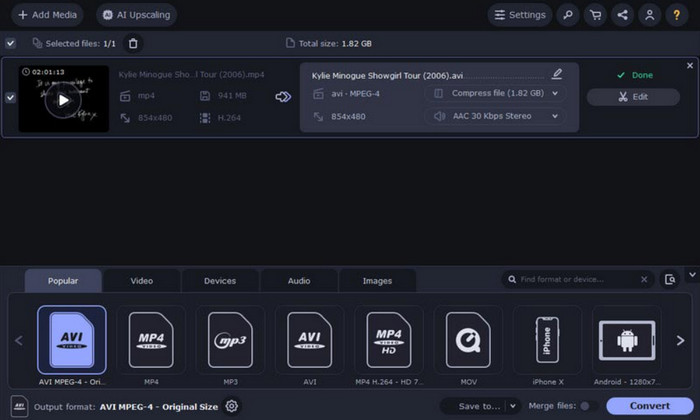
Main Features
• Effortless Audio and Video Format Conversion
Movavi Video Converter for Mac and Windows supports over 180 audio, video, and image formats, and users can also convert files to specifications compatible with specific device models.
Movavi Video Converter delivers exceptional efficiency during the conversion process - in an instant, you'll have access to your converted files.
Additionally, the software supports batch processing.
• Lossless Compression of Large Videos
What if a video file is too large to save? The video compression feature in Movavi Video Converter is your best ally. It reduces the size of multimedia files to free up more storage space while also saving time on the entire conversion process.
Will the video become blurry as a result? Movavi Video Converter guarantees that compression is performed without any loss of video quality.
• Manually Edit Existing Video Files
Movavi Video Converter offers all the necessary video editing features, including trimming, cropping, color adjustment, merging files, creating new clips, and more.
Is the footage too dull? Movavi Video Converter's special effects and subtitle creation tools will make your video look like a truly polished movie.
• Versatile AI Toolkit
Movavi Video Converter's AI features are incredibly versatile - for example, the impressive video resolution enhancement offers three classic options: 2X, 4X, and 8X; not to mention the noise reduction and detail enhancement features.
Pros
- The interface is clean and intuitive.
- It offers a substantial number of customization options.
- It supports formats compatible with mainstream devices.
- Conversion speeds are very fast.
Cons
- The free version has limited video editor features.
- It's been a long time since the last update.
- The free version adds a watermark to your exported videos.
If you would like a more professional MP4 video editor, you can check this article.
Part 2. Movavi Video Converter Performance
Unless we actually try it out, how can we know if Movavi Video Converter lives up to its claims in real-world use?
In this guide, we'll use a MOV video as the source file and attempt to convert it to MP4 format using this software. Here's how Movavi Video Converter performed throughout the process:
• Processing Speed
We were pleased to find that Movavi Video Converter's conversion speed was indeed impressive. After selecting the output format, we could preview the converted video almost immediately. After clicking the Convert button to confirm, we received the new file almost immediately.
• Supported Formats
Movavi Video Converter supports over 180 formats, which is more than enough to meet the daily needs of most users.
Users can easily find output options for mainstream formats such as MP4, AVI, MOV, WMV, MKV, VOB, RAW, MP3, OGG, GIF, PNG, JPEG, and JPG.
• Supported Platforms
Movavi Video Converter currently offers versions compatible with both Windows and Mac operating systems. No matter what type of device you use, you can download and install the software.
• Batch Processing
Movavi Video Converter fully supports converting multiple files at once.
• Storage Space
As an all-in-one video editor, Movavi Video Converter takes up a significant amount of storage space, and users generally find that it consumes a lot of CPU and memory resources during conversion.
Additionally, some users have reported encountering conversion interruptions and failures due to unknown errors, which is certainly a point you should carefully consider.
Part 3. How Much is Movavi Video Converter
It's time to ask the key question: Is Movavi Video Converter free?
Our answer is no. Downloading and installing the software is free, but to access its full features, you'll need to choose a subscription plan. The good news, however, is that every new user gets a 7-day free trial.
How much does Movavi Video Converter cost? If the price is reasonable, then a subscription wouldn't be a problem... Have you had this thought? Then let's take a look at the three subscription plans offered by the official website.
• 1-Month: $19.95
With this plan, you'll unlock all video conversion, editing, and AI video upscaling features.
• 1-Year: $54.95
This plan requires annual payment.
• Lifetime: $99.95
In addition to these three standard plans, there's an advanced Video Suite plan, which bundles Movavi Converter, Video Editor, and Screen Recorder into a single subscription, plus Split Movie and Media Player. The price for this plan is:
• Video Suite: $94.95
Part 4. Is Movavi Video Converter Safe
In terms of security, Movavi Video Converter offers a level of assurance that is quite reassuring. The software itself is widely recognized as safe, and the entire installation process is completely clean, containing no viruses or malware. However, this is only true if you download and install it from official sources.
Currently, there are two potential concerns:
Some users have reported that uninstalling the software can be somewhat difficult - for example, they are unable to uninstall it via the Control Panel.
Another point is that the software's last update was over half a year ago, which means some potential bugs may not have been addressed in a timely manner.
Part 5. Best Movavi Video Converter Alternative
If any of the issues mentioned above are a concern for you, why not check out the most reliable alternative to Movavi Video Converter - FVC Video Converter Ultimate?
FVC Video Converter Ultimate supports over 1,000 formats. With hardware acceleration and batch conversion support, you can enjoy the highest efficiency in video conversion.
Do you prefer Movavi Video Converter's AI video enhancement feature? FVC Video Converter Ultimate also supports intelligently enhancing videos from standard definition to 4K and even 8K.
Free DownloadFor Windows 7 or laterSecure Download
Free DownloadFor MacOS 10.7 or laterSecure Download
Here's how to convert video formats using FVC Video Converter Ultimate.
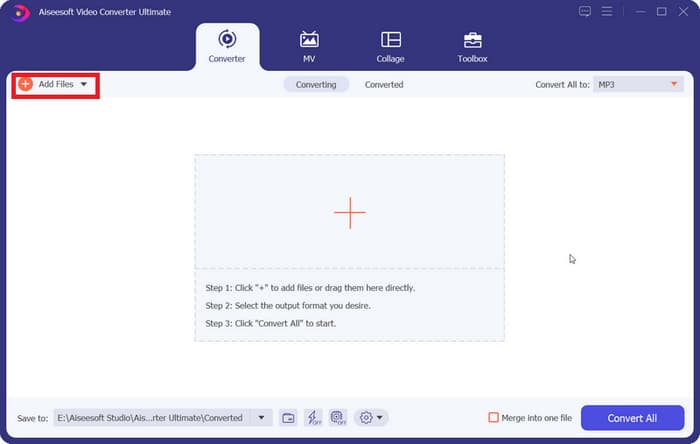
Step 1. Download and install FVC Video Converter Ultimate on your computer.
Launch the software and drag your videos into the file-adding interface. You can also click Add Files to upload them.
Step 2. Locate the Output Format option. Expand the drop-down menu, select Video, and then choose your desired output format.
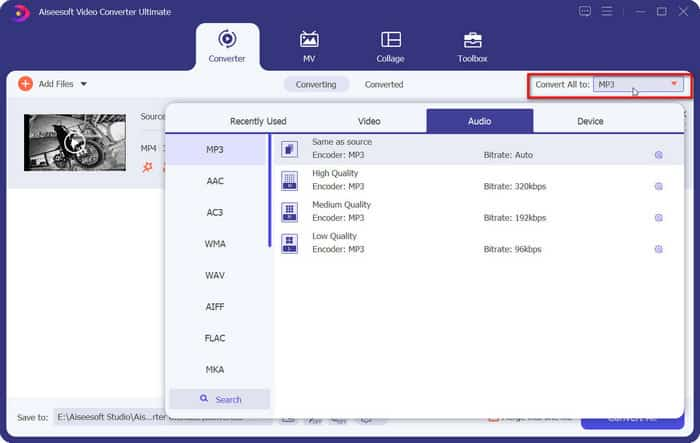
Step 3. Click Convert All to start the conversion.
Part 6. FAQs of Movavi Video Converter
Is Movavi actually free?
No. New users only get a 7-day free trial. To unlock all features, you must purchase a subscription.
Is Movavi a one-time purchase?
It offers several subscription plans, including a Lifetime plan, which allows you to use the software forever with a single purchase.
Does Movavi leave a watermark?
Yes. If you're using the free version, your exported videos will have a watermark. If you want to remove the watermark, you'll need to subscribe to a paid plan.
Conclusion
After reviewing Movavi Video Converter, our conclusion is that it is indeed an excellent piece of software: it supports a wide range of formats, offers fast conversion speeds, and provides basic video editing and AI-enhanced features. Security is well-assured, but a paid subscription is required for full functionality.
As for drawbacks, the watermark in Movavi Video Converter and the feature restrictions in the free version may deter many users. If you'd like to avoid these issues, we recommend choosing FVC Video Converter Ultimate as an alternative.
-
 4 Ways to Convert QuickTime Movies to MP4 for Free on Phone/Computer
Read and get 4 ways to convert QuickTime to MP4 videos for free on your phone or computer. You can change file format from MOV to MP4 easily.
-
 How to Fix QuickTime Player Not Working: 5 Methods for You
If you find that QuickTime Player not working on your Mac, try to find solutions here. We've offered 5 fixes to see if any of them match your situation.
-
 Best QuickTime Player Replacement Online and Offline [2025]
This will guide you to choose what are the best QuickTime Player replacement option if QuickTime player is not available on your platform or you want a new one.
