


 Video Converter Ultimate
 Screen Recorder
 Video Repair
 Secure Download
3 PSP Video Converter Tools Tested for Perfect PlayStation Portable Videos
Converting the file format of videos to the one suitable for a PSP player is not as simple as picking MP4 and pressing the Convert button. The PlayStation Portable device, in fact, supports only a limited set of video settings - correct codec, resolution profile, and H.264 level being the main ones. Any mistake when dealing with even one of these parameters can cause your video to fail, which will not play on the PlayStation console at all.
Based on these findings, I decided to publish this article, which will help you in searching for the best PSP Video Converter. I tested different kinds of converters and determined the ones that require the least effort from a user to come up with videos that are playable on the console without any problems. Also, I will give the correct parameters and the necessary instructions for how to transfer your converted files, so that you can enjoy seamless video playback on your PSP.

How We Test and Review
- I chose to review the features that are most relevant to a PSP user while testing each PSP video converter. I judged the different conversion tools on criteria such as the user-friendliness of the software, the ability of the conversion tool to output videos that match the requirements of the PSP, the quality of videos output after conversion, how fast each tool could convert, and whether it was possible to convert multiple videos at the same time using different settings. These evaluations enabled me to recommend a set of converters that provide good compatibility, performance, and friendliness, as desired by their users.
Quick Comparison of the Best PSP Video Converter Software
| Tool | PSP Preset Quality | Supports 480×272 | Level Control | Batch Conversion Support |
| FVC Video Converter Ultimate | Excellent (Manual PSP setup required) | Yes | Yes (H.264 Level 3.0) | Yes |
| HandBrake | Very Good (Custom preset) | Yes | Yes | Yes |
| Shutter Encoder | Excellent (Full codec control) | Yes | Yes | Yes |
Part 1. Top-Rated PSP Video Converter Software for Retro Gamers
Many video converters are not able to create PSP-compatible files. So, to select the proper converter, I tried out the most common tools. Your top PSP video file converter software is listed below, which will make sure your movies run smoothly and without a hitch on the PlayStation Portable.
FVC Video Converter Ultimate – Easy to Use with Broad Format Support
Score: ⭐⭐⭐⭐⭐ 5/5
Best For: Novices and casual users who want the best PSP video converter so they don't have to deal with complicated encoding settings or command-line tools.
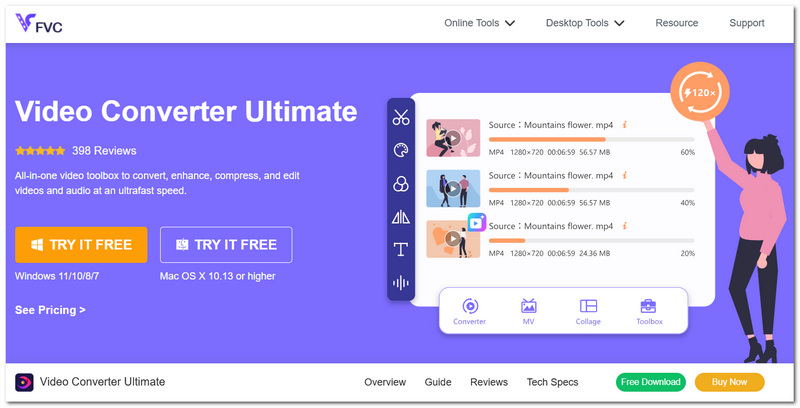
I have decided to go with FVC Video Converter Ultimate as the best tool for converting videos for PSP since the program boasts a friendly user interface alongside great features. It has a simple operation, batch conversion ability, and it lets users change video formats at the same time without getting involved in intricate tools that require lots of skills.
There's no special video mode for the PSP on this particular device, but changing the resolution to 480 x 272 through manual input won't be difficult at all. Simply choose H.264 as the compression format, set H.264 Level to 3.0, and you have done all the necessary to make your device play videos without degrading the quality or causing any lag.
Note: Before exporting, manually set the H.264 Level to 3.0 and the video resolution to 480x272 for PSP compatibility.
Pros
- A very basic and aesthetically pleasing GUI is presented to users.
- It supports very fast batch conversion with great video output quality.
- Users get a great set of encoding tools to make videos compatible with PSP devices.
Cons
- They didn't include support for a PSP-based profile in the application itself.
HandBrake – Best Free PSP Converter with Built-in Presets
Score: ⭐⭐⭐⭐☆ 4.5/5
Best For: People searching for a free MP4 to PSP video converter with dependable video quality and sophisticated encoding options.
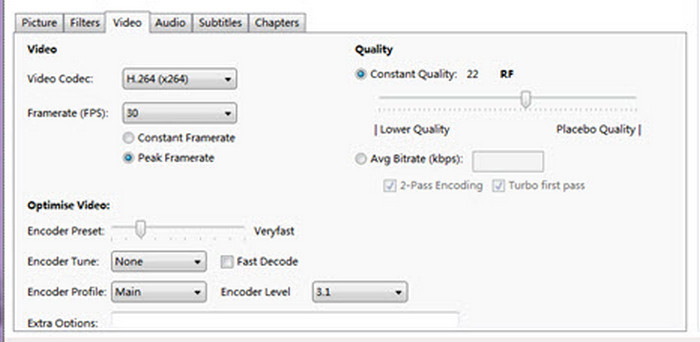
HandBrake is an excellent option to use if you want to free up space and still be able to use your PSP videos without spending money. HandBrake is good at encoding videos and has many features and customizations that one can use to make it easy to make their own file compatible with PSP. It's a great way if you're willing to change your parameters only slightly before you start the video conversion.
Pros
- Open-source and totally free.
- Superior H.264 video encoding.
- Batch conversion for several files is supported.
- You can also use HandBrake to compress video, trim, and edit further.
Cons
- PSP settings need to be manually adjusted.
- For new users, the interface might seem technical.
Shutter Encoder – Full Codec Control for Advanced Users
Score: ⭐⭐⭐⭐ 4/5
Best For: Knowledgeable users who require a PSP video format converter with exact control over encoding settings and codecs.
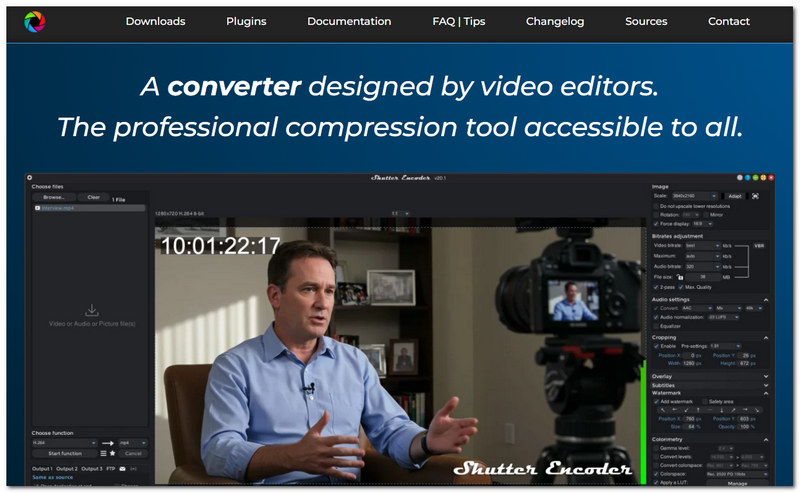
Shutter Encoder was designed for those who want to have complete control over the video converting process. It has a large number of available codecs and encoding parameters that make it trustworthy for converting a video in the format suitable for PSP at the output settings of the user' choosing.
Pros
- It gives the user maximum control over the codecs and encoding settings.
- You can convert a number of videos with its batch mode.
- You get really good results since they employ tools that one should only find in studios.
Cons
- Making sense of the app's visual layout might be challenging at first.
- PSP device compatibility configuration must be changed manually if the user wants to use this program for that.
Part 2. How to Set Up FVC Video Converter Ultimate for PSP (Step by Step)
If you need a free PSP video converter alternative with better features, the FVC Video Converter Ultimate enables you to convert videos compatible with your PSP. To enjoy smooth playback while watching videos on the PSP, you will need to set some of the conversion parameters correctly. These are the steps you have to follow to configure the settings properly.
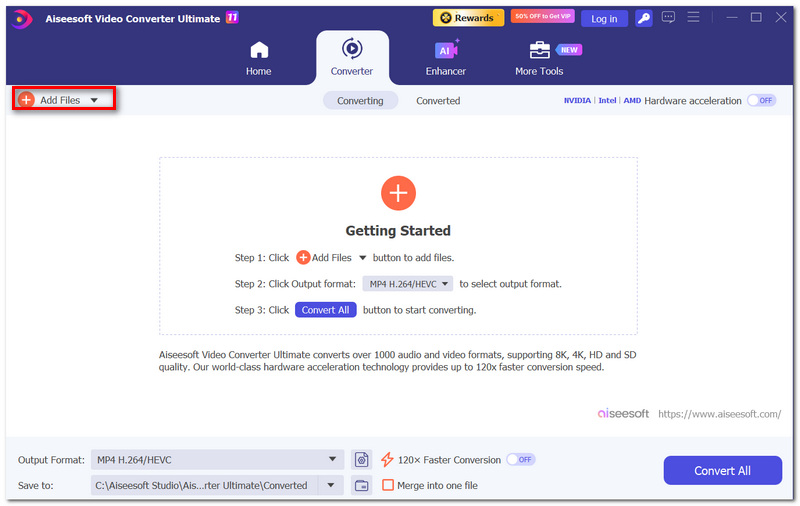
Step 1. Launch the FVC Video Converter Ultimate and locate the + Add Files to upload the video intended for conversion.
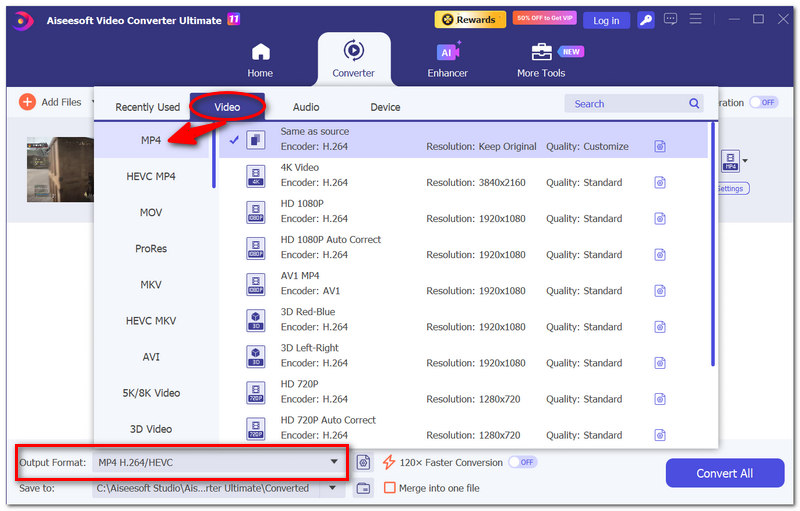
Step 2. Click the Output Format button and head to the Video tab, where you can choose MP4 as the desired output format. Your PSP will support the playback of the MP4 video when it has been encoded at a level that is compatible.
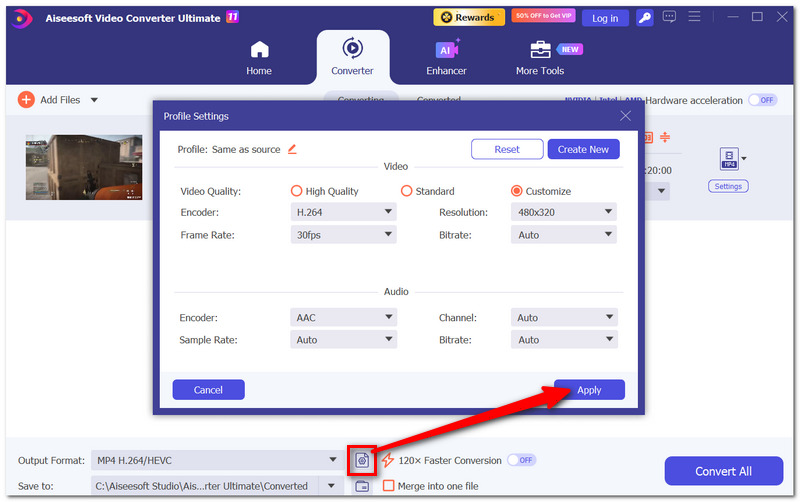
Step 3. Click Customize Settings under the MP4 profile that you have selected. The next page will show you options to set the video to your liking:
- • Video Codec: H.264 (AVC)
- • Resolution: 480×272
- • H.264 Level: 3.0
- • Frame Rate: Same as the original video (generally about 30 FPS)
- • Audio Codec: AAC
If you intend to use this profile of settings quite often, just click the Profile Management button to save this profile.
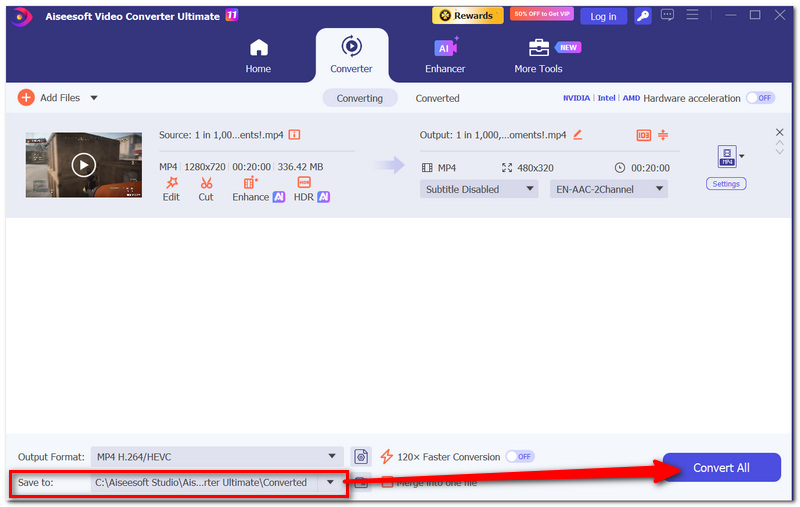
Step 4. After selecting your desired output format, click to set the location where you want the output videos to be stored and then click to browse and select your destination directory.
Step 5. Hit the Convert All button to carry out the file conversion operation. The moment the file conversion procedure ends, your file will be all set to be transferred to the PSP player.
Part 3. How to Name and Transfer Files After Using a PSP Video Converter
Once your video is ready, the last step is transferring it to your Sony PlayStation Portable (PSP) properly. Below are the simple steps to be followed so that you can be assured that your console recognizes your video.
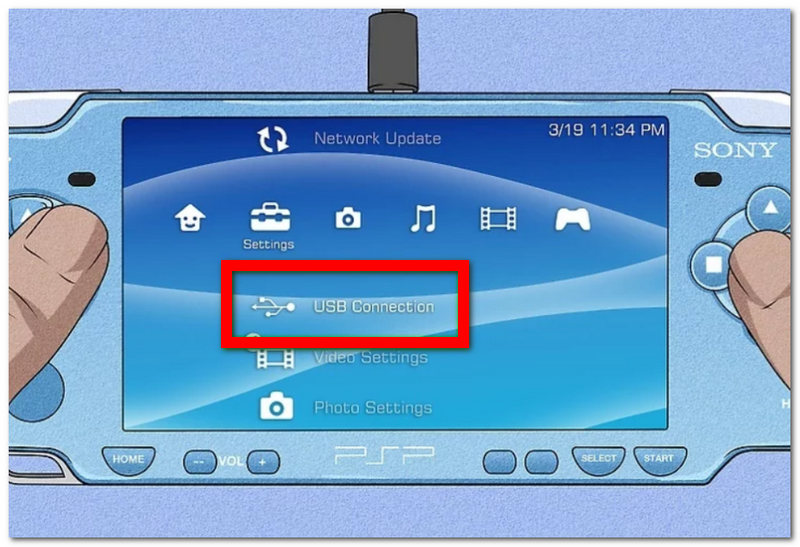
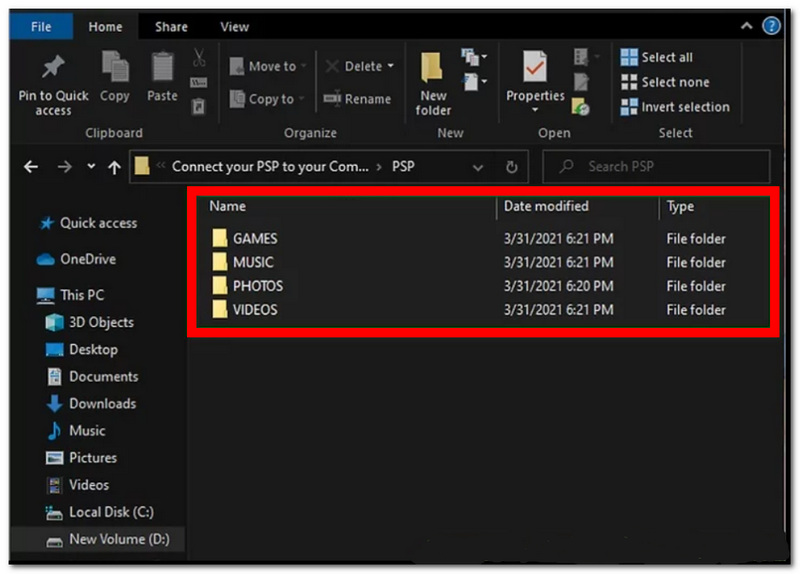
Step 1. Plug your Sony PSP and computer with a USB cable, then enable the USB Connection mode on your PSP. Go to the Storage option and open it on your computer. You will find a root directory. If there is no video folder in that area, go ahead and create it, then rename it to VIDEO (all capitals).
Step 2. Either copy or paste your converted.mp4 file into the VIDEO folder, after which you can rename your video file to something simple to be a little quicker to find on your PSP.
Step 3. Safely remove the Sony PSP from your computer to prevent file corruption, then unplug the USB cable.
Step 4. Go to Video in the XMB (Cross Media Bar) of your Sony PSP. Your video should show up in the list and be playable. In case it doesn't, make sure that during the conversion you were using the video settings that were compatible with your Sony PSP.
Part 4. FAQs about PSP Video Converter
Is it possible to convert 4K video for playback on a PSP?
Definitely, there are 4K video converters that can easily downscale 4K videos to a resolution that the PSP can play. But the length of time required for converting the video depends quite a lot on your computer's performance.
What format of memory card does the PSP support for videos?
The video player of the PSP is usually a small device called a Memory Stick PRO Duo that has storage capability or its equivalent as the PSP model, and the video files that you want to have should be MP4 and placed in a folder called VIDEO on the memory card.
Can video converters for PSP retain the original soundtrack with surround audio?
Not really. The PSP being a compact multimedia player that can only play two-channel audio, surround sound is normally changed to AAC stereo during the process, as this will guarantee that the video plays properly on the device.
Conclusion
Finding a proper PSP video converter software basically means being able to strike a balance between convenience, the number of supported formats, and the end output quality. Even though you can use a freeware program to perform this task, choosing a converter with advanced settings for editing the codec can help minimize the number of times you have to play a video and also reduce the number of times you'll encounter problems while watching it. Simply go with the one that works best for you, use the recommended settings, and your videos will be playable on your console just fine.
-
 3 Amazing & Proven Methods to Convert FLV to MKV for Free
 Looking for a solution to convert FLV to MKV? Then continue reading the full details below to determine how to convert FLV files and the available tools.
-
 Review of Top 10 HD Video Converter Software (Free & Commercial)
 Read and Compare to get the best HD video converter software from 10 recommendations. Here’re the detailed reviews of each HD video converter for multiplatform.
-
 How to Convert MTS to MOV – 4 Best MTS Converters
 Can’t play the MTS file on your computer or iPhone/Android phone? What is an MTS file and how to play it? What is the best MTS Video Converter? This post shares 4 simple and free ways to help you convert MTS to MOV for better playback.
