


 Video Converter Ultimate
 Screen Recorder
 Video Repair
 Secure Download
Is it Really Possible to Combine Videos in HandBrake?
HandBrake is one of the most popular open-source tools for video conversion and compression, making it a go‑to choice for many users. Because of its wide range of media processing features, it's common for people to wonder whether it can also combine multiple videos into a single file. However, not every media tool offers the same functionality, and understanding what HandBrake is designed to do can save you time and frustration.
In this article, we'll explore whether HandBrake can combine videos, explain its actual capabilities, and recommend the best alternatives if video merging is what you need. We'll also provide a step‑by‑step guide to help you combine videos easily using a more suitable tool.

Part 1. Can HandBrake Combine Videos?
The short answer is no. HandBrake cannot combine multiple videos into a single file because it does not include a video merging feature. Although HandBrake is a powerful open‑source tool for video conversion, compression, transcoding, and basic processing tasks, it is not designed to function as a full‑fledged video editor.
This misconception about the idea that HandBrake can combine videos is common among users who are familiar with HandBrake's extensive encoding options. Since the software can process various video formats and customize output settings, many assume it can also join multiple clips. However, each video is processed individually, and there is no built‑in option to import several videos and export them as one continuous file.
Part 2. Best Alternative to HandBrake to Combine Videos
If you want to combine multiple video clips, you’ll need a video editor or a video converter with a built‑in merging feature. These tools let you put clips together in the order you want, make simple adjustments if needed, and export everything as one complete video without switching between different programs.
Below are the best HandBrake alternatives for combining videos:
FVC Video Converter Ultimate:
FVC Video Converter Ultimate is an all-in-one multimedia software that goes beyond video conversion by offering a variety of editing tools, including a built-in Video Merger. Unlike the process of HandBrake combining videos, it allows you to merge multiple video clips into a single file while maintaining high video quality. You can also trim, crop, rotate, add effects, enhance videos, and export them in numerous formats, making it an excellent choice for both beginners and experienced users.
Best for:
- • Combining multiple videos without losing quality.
- • Beginners who prefer an intuitive interface.
- • Editing videos before merging them.
- • Exporting merged videos in various formats and resolutions.
How to Combine Videos with FVC Video Converter Ultimate:
Step 1. Download and install the FVC Video Converter Ultimate.
Free DownloadFor Windows 7 or laterSecure Download
Free DownloadFor MacOS 10.7 or laterSecure Download
Step 2. Next, launch the tool and click the Home tab. From there, select the Video Merger tool.

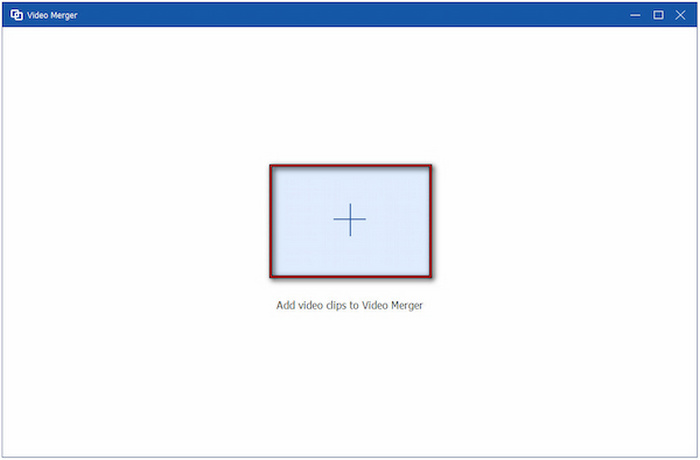
Step 3. On the Video Merger window, click Plus to load the video files you want to combine. If you initially uploaded a single video, click +Add to add more clips.
Step 4. Once done, just click the Export button to merge and save the videos.

FFmpeg
FFmpeg is a free, open‑source command‑line multimedia framework used for recording, converting, streaming, and editing audio and video files. Although it doesn't provide a graphical interface, it offers powerful commands that allow users to merge videos quickly and efficiently. FFmpeg is widely used by developers, video professionals, and advanced users who need precise control over media processing.
Best for:
- • Advanced users familiar with command‑line tools.
- • Fast, lossless video merging.
- • Automating video processing tasks.
- • Handling a wide variety of video and audio formats.
How to Merge Videos Using FFmpeg:
Step 1. Create a plain text file and list the video files in the order you want them to appear. Use the following format:
file 'video1.mp4'
file 'video2.mp4'
file 'video3.mp4'
Step 2. Open Command Prompt or Terminal, then navigate to the folder that contains your videos and the text file.
Run the following command: ffmpeg -f concat -safe 0 -i list.txt -c:v copy -c:a copy output.mp4
Wait for FFmpeg to complete the process. Your merged video will be saved as output.mp4.
Shotcut
Shotcut is a free, open‑source video editor that offers a comprehensive set of editing features, including the ability to combine multiple video clips on a timeline. It supports hundreds of audio and video formats through FFmpeg and provides tools for trimming, transitions, filters, color correction, and more. Its timeline‑based workflow makes it a practical alternative to HandBrake for combining videos.
Best for:
- • Users looking for a free video editor.
- • Combining videos with transitions and effects.
- • Editing videos before exporting.
- • Cross‑platform use on Windows, macOS, and Linux.
Step 1. First, download and install Shotcut on your computer.
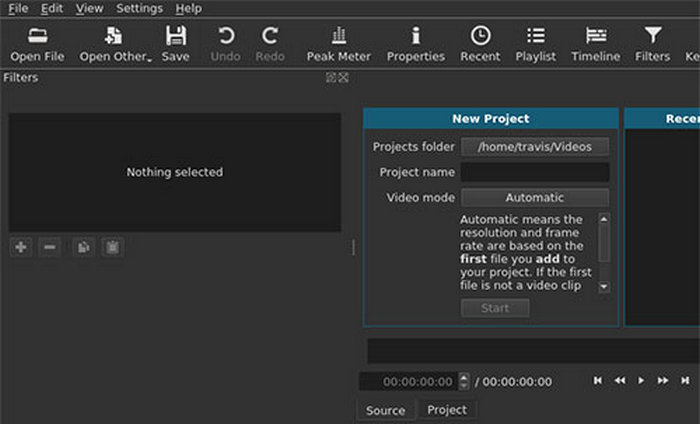
Step 2. Launch the program, then click Open File to import your first video. Once it's loaded, drag the clip onto the Timeline at the bottom of the interface.
Step 3. Next, import your next video using the same method and drag it onto the same timeline track.
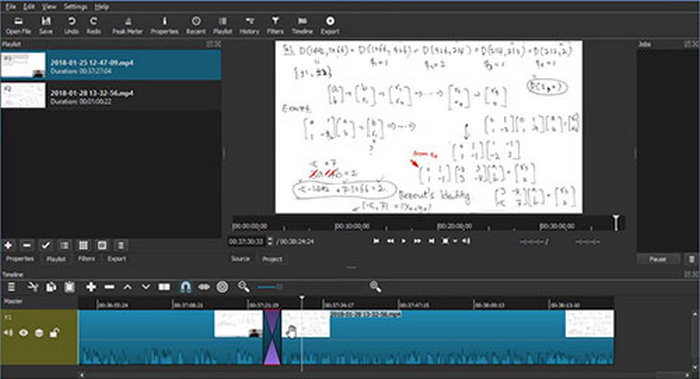
Make sure the end of the first clip aligns with the beginning of the second so they play continuously. Repeat this process until you've added all the videos you want to combine.
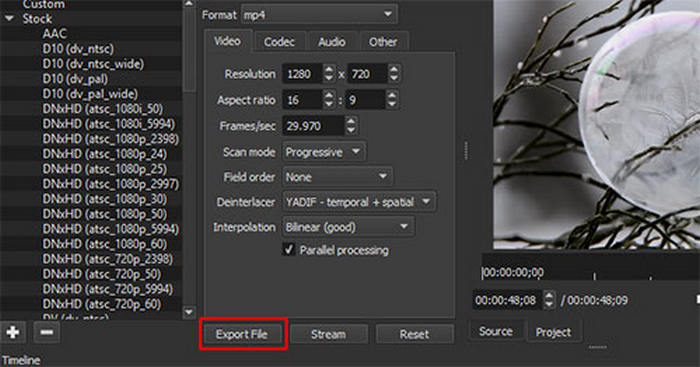
Step 4. Lastly, after arranging your clips, click Export to save all the clips as a single merged video.
Part 3. FAQs about HandBrake Combine Videos
Why doesn't HandBrake have a video merging feature?
HandBrake is mainly built as a video transcoder, so its focus is on converting video formats, reducing file sizes, and adjusting encoding settings. It was never designed to be a full video editing tool, which is why you won’t find features like merging clips, splitting videos, or rearranging footage inside the program.
Can I combine videos before converting them with HandBrake?
Yes. If you want to use HandBrake for compression or format conversion, you can first merge your videos using a tool like FVC Video Converter Ultimate, Shotcut, or FFmpeg. Once the videos are combined into a single file, you can import the merged video into HandBrake for further conversion or compression.
What is the best HandBrake alternative for combining videos?
The best alternative depends on your needs. FVC Video Converter Ultimate is ideal for beginners because it offers a simple interface and a dedicated Video Merger. Shotcut is a great free option for users who need basic editing features, while FFmpeg is best suited for advanced users who prefer command‑line tools and want greater control over the merging process.
Conclusion
Although many people search for HandBrake Combine Videos, HandBrake itself does not actually offer a feature for merging multiple clips into one video file. The software is mainly designed for video conversion and compression rather than editing. If you need to combine videos, there are plenty of reliable alternatives that can get the job done. For example, FVC Video Converter Ultimate is a simple option for quick tasks, FFmpeg offers more advanced control for experienced users, and Shotcut provides free editing tools for those who need more flexibility. Choose the tool that matches your workflow and you’ll be able to merge your video clips easily without running into HandBrake’s limitations.
-
 Top 6 Ways to Combine MP4 Files on Windows/Mac/Online
 Want to merge your raw MP4 files for your project? This post gathers the top 6 ways to help you combine MP4 videos on Windows, Mac and online with ease.
-
 Concrete Tutorial – 2 Methods to Combine Videos for Instagram
 This article will introduce two efficient methods to combine videos for Instagram. Just follow the instructions here and see what you can get finally.
-
 How to Combine Videos on TikTok Seamlessly with Best Tools
 Convert from simple clips to compelling content and create viral TikTok videos with our step-by-step guide on how to combine a video on TikTok.
