


 Video Converter Ultimate
 Screen Recorder
 Video Repair
 Secure Download
A Guide on How to Extract Audio from DVD with VLC Player
VLC Player is a free tool that offers more than you might expect. First and foremost, it is an excellent video player that lives up to its name. It offers a wide range of individual settings. Secondly, it can convert video formats and perform simple video editing. You may be surprised that VLC Player can even rip DVDs and separate the video and audio for saving. As long as you have an optical drive, you can do this in VLC Player. In this article, we will introduce you to how to extract audio from DVDs using VLC Player on both types of devices in two parts. If you find VLC Player's functions too monotonous, you can also try our recommended alternatives.

Part 1. Rip DVD Audio with VLC Player
Before we start ripping audio from DVD, we need to do some preparation. First, you must ensure you have the latest version of VLC Player installed on your computer. Otherwise, some functions may not work properly. Second, we need to prepare a DVD drive that can read DVDs and connect it to our computer. This is how we can read the information on the disc. Once we are ready, we can follow the steps below.
Using VLC Player on Windows
If you are using a Windows computer, please read the step-by-step instructions in this section. Here is how to extract audio from a DVD with a VLC Player on your PC.
Step 1: Insert your DVD. If your computer has a DVD drive, insert the disc into it. Note that you should ensure it is not a CD drive; otherwise, your DVD will not be able to be read by it.
If your computer does not have a drive, you should connect a USB DVD drive to it.
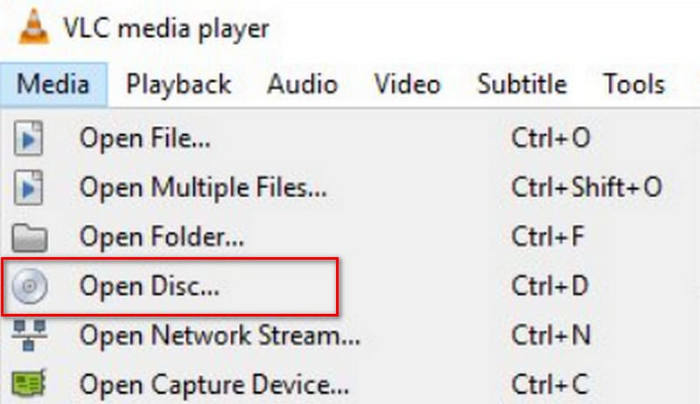
Step 2: Open VLC Player on your computer. Click Media to open the drop-down menu.
Step 3: Choose Open Disc among all the options.
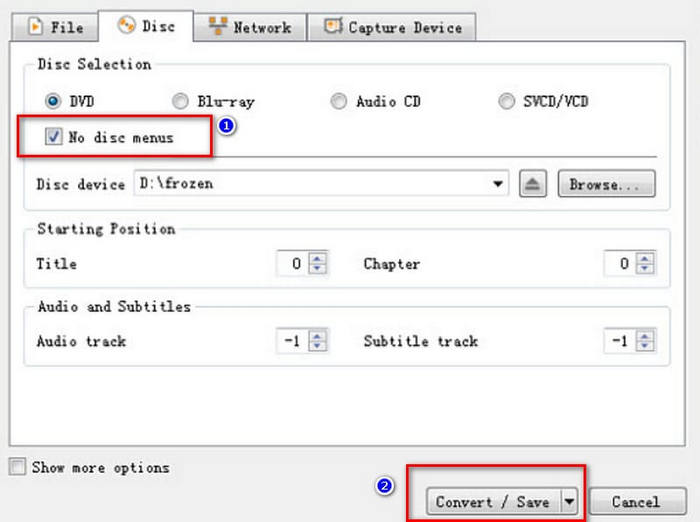
Step 4: An Open Media window will be launched. Find the No disc menus and check them.
Step 5: Find the Play button in the bottom right corner. Then click Convert/Save.
Step 6: A new Convert page will open. Expand the box next to Profile, and choose Audio - MP3.
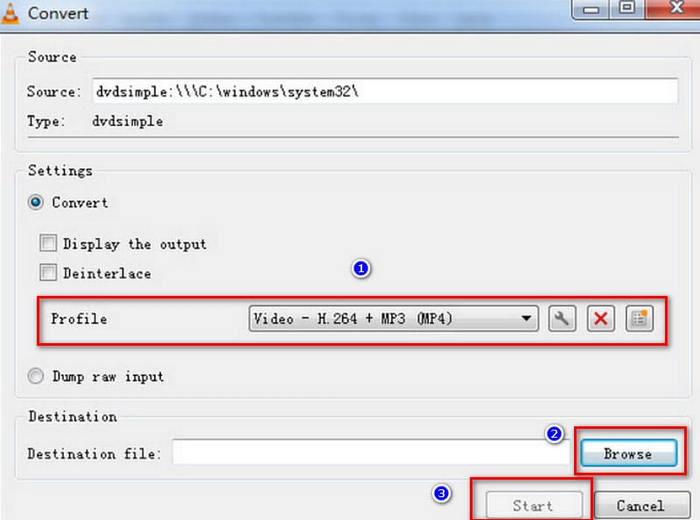
Step 7: To find a save path for the ripped audio, click Browse, name your file and choose a folder.
Step 8: Finally, return to the Convert window and click Start. The VLC audio ripping process will begin.
Using VLC Player on Mac
Here are the steps to strip audio from a DVD using a VLC Player on Mac.
Step 1: First, you need to insert the DVD into the drive. If your Mac computer has an optical drive, insert the disc directly. If not, use an external USB drive to read the DVD.
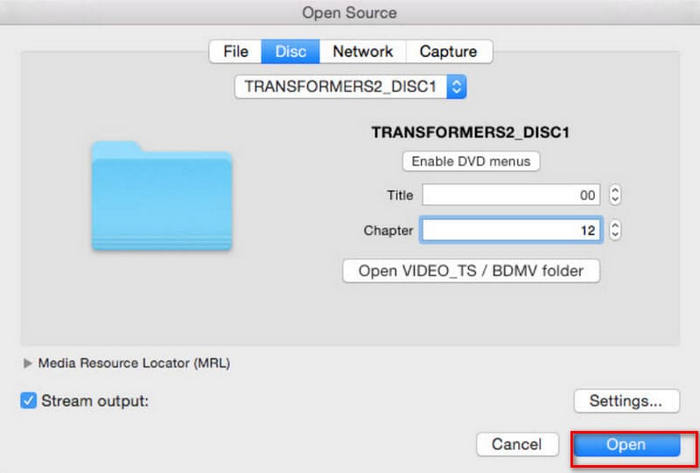
Step 2: Open VLC Player on your device. On its main interface, choose File > Open File. When the Open Source window appears, go to the Disc tab. Choose the DVD you inserted.
Step 3: Then, you need to choose Disable DVD menus. If you don't, the VLC Player may get stuck in a loop while grabbing the DVD menu. You also need to enter the right title and chapter.
Step 4: Click Stream output and then the Settings button. This will launch the output settings page.
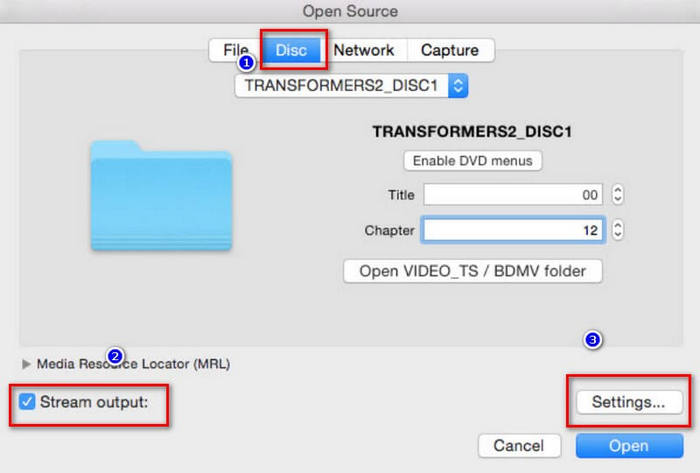
Step 5: On the output settings window, click File > Browse to find a folder on your Mac where you want to save the ripped audio.
Step 6: Next, go to the Encapsulation Method and Transcoding tab to select a format.
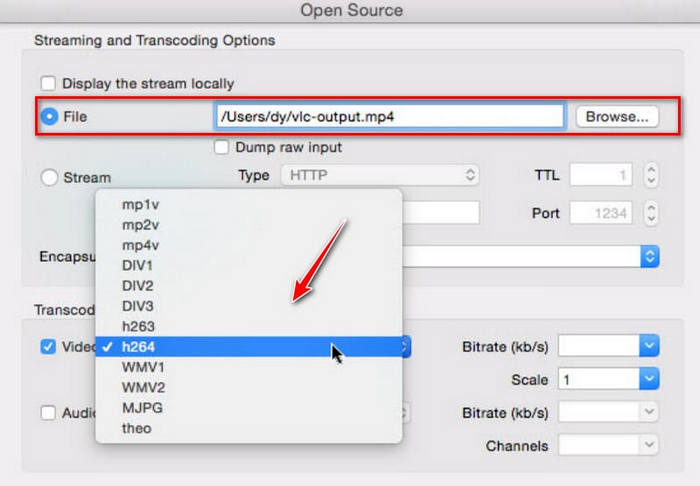
Step 7: When you finish all the settings, click Open to start ripping audio off the DVD with VLC Player. The process is visible on the player's interface.
Part 2. Alternative for VLC Player
Now we know how to use VLC Player on Windows and Mac computers to export music from DVDs. However, VLC Player is not the only tool that can do this. Although it is free, the functionality is relatively basic. Suppose you want a more comprehensive service and want to do some professional processing of the exported audio. We recommend using a professional DVD ripper, such as AnyMP4 DVD Ripper. It can not only rip homemade DVDs, but also convert 99-title, commercial DVDs to over 500 digital formats. In terms of ripping speed, it has hardware acceleration technology to ensure that files can be produced with high quality and efficiency. With it, you can back up your DVD in 1:1 ratio without compromising video quality.
Free DownloadFor Windows 7 or laterSecure Download
Free DownloadFor MacOS 10.7 or laterSecure Download
Here is what you should do to rip DVD audio to MP3 using AnyMP4 DVD Ripper.
Step 1: Download and install AnyMP4 DVD Ripper on your computer. Launch it on the desktop. Please make sure you have the optical drive to read the DVD. Insert the disc into the prepared drive. Click "Load DVD". Thus, the program will load the content within your DVD.
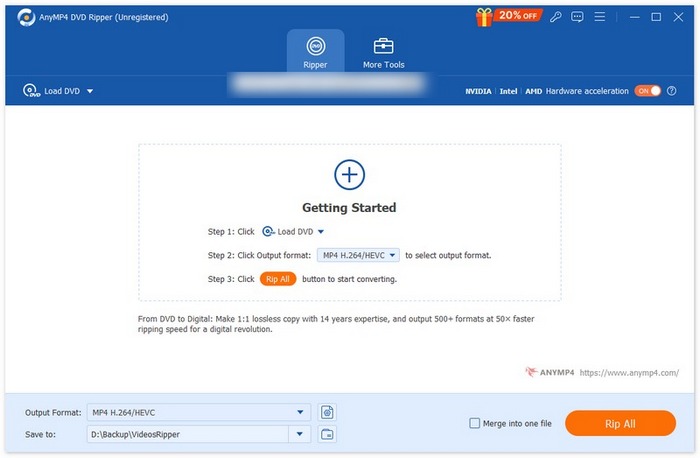
Step 2: The interface will show the DVD details, including the subtitle, audio channel, duration, resolution, etc. You can edit it based on your needs. Then, you can select the "Audio" in drop-down "Output Formats" button and choose an audio format.

Step 3: Click "Rip All" to get your digital audio formats.
Part 3. FAQs of VLC Extract DVD Audio
Should I rip CDs to MP3 or WAV?
This depends on what you want to do with the ripped audio. In general, WAV offers higher audio quality, while MP3 offers a smaller file size, which is easier to store and distribute. MP3 is also more adaptable. You can make your choice after considering the above factors.
Is it OK to convert FLAC to WAV?
Yes, you can convert WAV to FLAC or convert FLAC to WAV. Both formats are lossless and offer you high sound quality. However, FLAC files are smaller than WAV files, although there is hardly any difference in sound quality. If you are concerned about your device's storage space, we recommend selecting FLAC as the output format.
Can people hear the difference between WAV and MP3?
The difference between WAV, FLAC and MP3 formats is negligible for most users. When we discuss the difference between them, we often mention that WAV can provide higher quality, while MP3 compresses files more efficiently, but in actual music, this makes almost no difference.
Conclusion
This is a guide on how to use VLC Player to export audio from a DVD. We demonstrate the method on a Windows PC and a Mac, respectively. You can follow along with our text and accompanying images. If you want to make more changes to the audio before exporting, we recommend VLC Player's best alternative, AnyMP4 DVD Ripper. Its powerful features will not disappoint you.
-
 3 Methods to Burn Video_TS to DVD on Windows and Mac
 Have the TS file on hand and want to save it on DVD, read this guide. We will teach you how to burn Video_TS to DVD on Windows or Mac computers in detail.
-
 2025 Review of 5 Free DVD Players for Windows 10
 What is the best free DVD player for Windows 10? How to get Windows Media Player play DVD? This post lists 5 best free DVD players for Windows 10.
-
 DVD Player Software for Mac Free Download 2025
 How to play a DVD on Mac without a DVD drive? How do I use an external DVD player with my Mac? This post shares 5 free DVD players for Mac.
