


 Video Converter Ultimate
 Screen Recorder
 Video Repair
 Secure Download
What Is BUP File Format - How to Open It on Windows or Mac
We can see so many file formats nowadays, and they each represent completely different meanings and types of data. When we click on a video with an unfamiliar file extension, we may also find that we don't have any software or player on our computer to play it. Regular digital formats have fewer problems because our devices' players and streaming platforms are compatible with hundreds or even thousands of multimedia formats. However, DVDs are an exception. When we open the disc folder, we will find that it contains not just a single movie but many different entries. That is why we need a professional tool to help us export videos in digital format when copying DVDs. BUP is often found among these entries. So, what is a BUP file? What is the significance of this type of data on a disc? In this article, we will help you understand the meaning of the BUP format and how to open it and convert it to other popular formats.

Part 1. What Is BUP Format
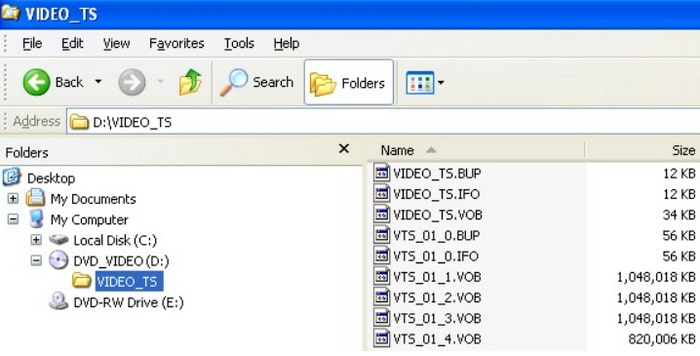
BUP files usually appear in DVD folders and are backups of IFO files. They store similar data to IFOs, i.e. subtitles, audio tracks, menus, etc. BUP, IFO and VOB files are generally located in the Video_TS folder on a DVD. The DVD player often opens the original IFO files on the disc when we play the content on a DVD. However, when the surface of the DVD becomes worn or scratched, the optical drive or player will have difficulty reading the IFO files. This is where the backup files in BUP format come in handy, and the player will switch to using the BUP files. BUP is not protected by encryption, so any user can access files in this format. We can also convert BUP to other common digital formats. However, opening BUP when the IFO files are in good condition is not recommended.
Part 2. Differences of BUP/IFO/MOV/VBO/MP4
In the DVD folder, we can see five formats: BUP, VOB, IFO, MOV and MP4. The previous article roughly explained the meaning of the BUP file type. So, what do the remaining four formats represent? And what is the difference between them? You will find the answers in this section. We will also use a comparison table to show the differences.
• IFO
The IFO, with the full name of DVD information files, is the central member of the DVD folder. It stores all the important content of the disc, including subtitles, audio tracks, menus, etc. It can be said that the IFO file contains all the information for playing the DVD and navigating the chapter content.
• BUP
The full name of BUP is the Backup file. It stands for backup of the IFO file. When the IFO file is damaged, the player will switch to opening the BUP file. However, it is not a real video.
• MOV
Unlike the previous formats, MOV is a common digital video format for QuickTime Movie files. MOV videos can be played directly and are compatible with numerous video platforms and editing software.
• VOB
The VOB file represents the video data in a DVD folder. It can hold MPEG-2 video as well as audio in MP2, AC3, or DTS format. The full name of VOB is Video Object. We need a DVD player that supports this format to open a VOB video.
• MP4
This is the most popular video format. MP4 is still the most compatible format, supported by almost all device models and platforms. It is characterized by achieving the smallest possible file size with little loss of video quality, making it ideal for distribution and sharing.
Part 3. How to Rip NTSC DVD
Now we know what BUP stands for and its role in DVD folders. So, how do you play BUP files? Which players are compatible with BUP on devices with different operating systems? We will list a few options in this section. However, before you start, we would like to remind you that since BUP is a backup file, the content of each BUP file is not the same, and it serves a different purpose. In addition to DVDs, BUPs can be found in some game application folders. If you want to open a BUP file from a DVD, you can try some third-party video players; if you want to read a BUP file from a game, you need to find the specific application. Here, we mainly recommend multimedia players that are compatible with DVD BUPs.
• For Windows
If you are a Windows PC user, you might want to consider the following free DVD players.
Nero ShowTime, 5K Player, VLC Media Player, PowerDVD, Windows DVD Maker
• For Mac
If you want a free Mac DVD player compatible with BUP, please refer to the following options.
5K Player, Apple DVD Studio Pro, Roxio Popcorn
Part 4. How to Turn BUP into Common Video Formats
Apart from VLC Media Player and 5K Player, most BUP video players are not commonly used. In addition, BUP files themselves can be vulnerable to malware, and opening them directly is often inconvenient and risky. For these reasons, it is generally not recommended to play BUP files directly unless absolutely necessary.
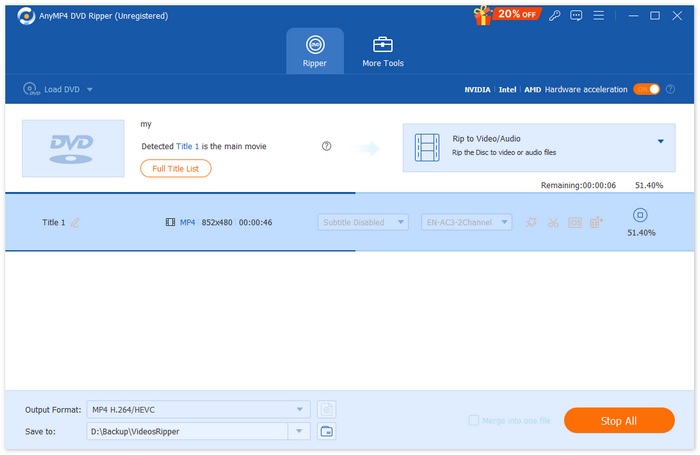
A safer and more practical solution is to convert the entire VIDEO_TS folder on the DVD into a widely supported digital format, such as MP4. By doing so, the content referenced by BUP files can be preserved in a more stable and playback-friendly format, making it easier to watch and store. AnyMP4 DVD Ripper is a reliable tool for this task. It allows you to rip DVDs and convert VIDEO_TS folders or ISO image files into popular video formats with ease. Supporting a wide range of output formats and device presets, AnyMP4 DVD Ripper ensures excellent compatibility across different media players and platforms. Before exporting, you can also customize video settings such as output format, resolution, duration, and video quality, giving you full control over the final result.
Free DownloadFor Windows 7 or laterSecure Download
Free DownloadFor MacOS 10.7 or laterSecure Download
To convert BUP into a common video format with AnyMP4 DVD Ripper , follow these steps.
Step 1. Download and install AnyMP4 DVD Ripper on your computer. Insert the DVD into your disc drive, or make sure the VIDEO_TS folder or ISO file is saved locally on your computer.
Free DownloadFor Windows 7 or laterSecure Download
Free DownloadFor MacOS 10.7 or laterSecure Download
Step 2. Launch the program and click “Load DVD”. You can choose to load a DVD Disc, DVD Folder (VIDEO_TS), or DVD ISO File. The software will automatically analyze the DVD content.
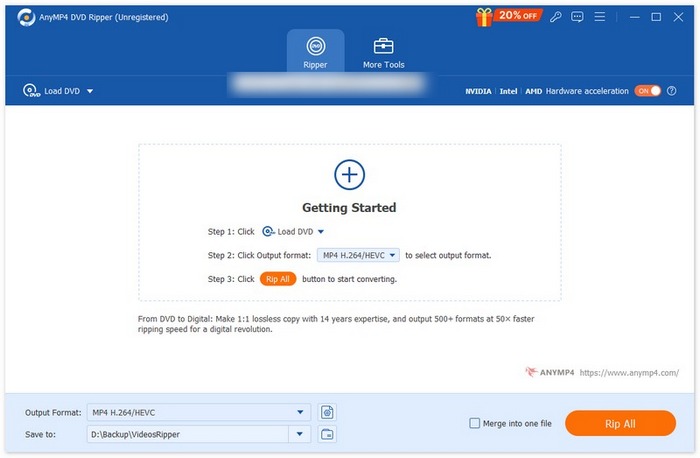
Step 3. Click the “Output Format” dropdown menu and choose a popular digital format such as MP4, MOV, AVI, or MKV, depending on your playback needs and device compatibility.
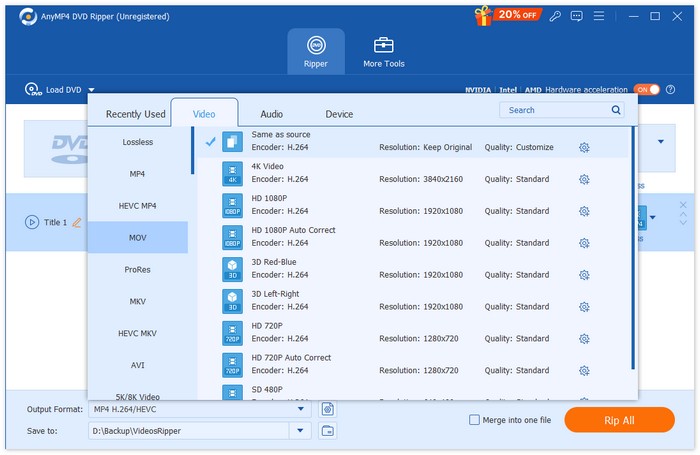
Step 4. If needed, click “Custom Profile” or “Edit” to adjust parameters like resolution, bitrate, frame rate, video quality, or clip length, ensuring the output video meets your preferences.
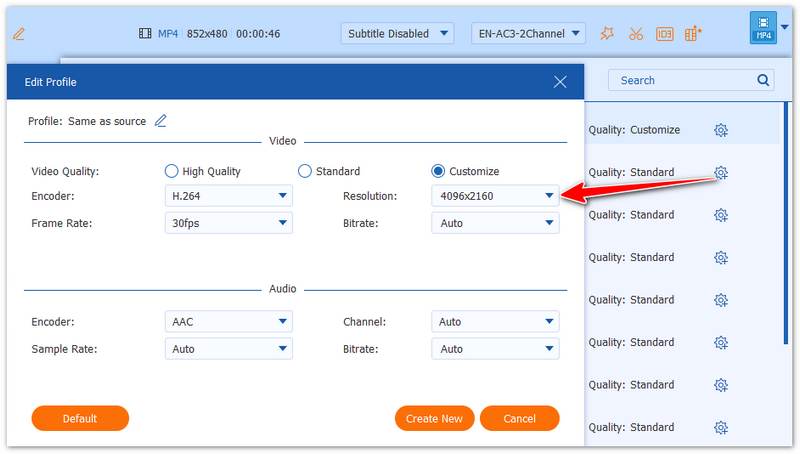
Step 5. Choose a destination folder, then click “Rip All” to begin the conversion. Once finished, the BUP-related content will be saved as a standard video file that can be played safely on most devices.
Part 5. FAQs of What Is BUP File
How do I open a BUP file?
You can select the VIDEO_TS folder in the DVD file and find the file with the .bup extension. Double-click it and set VLC Media Player as the open method.
What media player will play VOB files?
Some free players like Windows Media Player and VLC Media Player are good choices.
Can I convert VOB files to MP4?
Of course, you can. The VOB format is not widely compatible, so you can choose AnyMP4 DVD Ripper to convert it to a more common format, such as MP4 and MOV.
Conclusion
This article introduces an uncommon file format, BUP, which is typically found on DVDs. BUP files serve as backups for IFO files and store important information such as directory structures, subtitles, and navigation data. In addition to explaining what a BUP file is, the article also compares it with related formats like IFO and VOB.
However, opening and playing BUP files directly is inconvenient and often impractical. Therefore, we recommend using a professional tool like AnyMP4 DVD Ripper to rip the DVD and convert its content into more widely supported video formats, making playback and preservation much easier.
Free DownloadFor Windows 7 or laterSecure Download
Free DownloadFor MacOS 10.7 or laterSecure Download
-
 DVD Player for iPad: How to Play DVD Videos on iPad Air/Mini/Pro
 When you want to play DVDs on your iPad Pro, you will find there is no interface that can connect external DVD players to your iPad. You can learn how to rip or convert DVDs to the supported formats from this article.
-
 Can Wii/Wii U Play DVDs without Homebrew? 2 Solutions for You
 When you insert DVD discs into Wii, you will find Wii can’t read and play DVDs because of the regional lockout. In this article, you will learn how to play DVDs on Wii/Wii U easily without the Homebrew hack.
-
 How to Fix Windows Media Player Not Playing DVDs: 3 Methods
 Is the Windows Media Player not playing DVDs? It doesn't matter if your device is using Windows 7,8 or 10. You can find a solution. Here are the best players.
