


 Video Converter Ultimate
 Screen Recorder
 Video Repair
 Secure Download
WhatsApp Record Video: 3 Ways to Record on PC/Android/iPhone
WhatsApp may be one of the most popular messaging apps today, but it cannot directly record video calls. Whether it’s a work meeting, an online class, or a special chat with loved ones, being able to save those moments can be incredibly useful.
The good news? You don’t have to miss out. There are safe and effective ways to record your WhatsApp video calls, no matter what device you’re using. In this guide, we’ll show you three proven methods to record WhatsApp video calls on PC, Android, and iPhone. So if you’ve ever wished to replay a video call conversation or keep a copy of an important call, this is exactly where you need to start.

Part 1. Can You Directly Screen Record WhatsApp Video Calls?
As mentioned earlier, there’s no WhatsApp record video feature to record video calls. This is mainly because of privacy and security reasons. WhatsApp uses end-to-end encryption, which means only the people in the call can see and hear what’s being shared.
Because of this, the app doesn’t allow direct recording to make sure that your private conversations stay protected. So even if you try to look for a record button inside WhatsApp, you won’t find one. The app simply doesn’t support video call recording.
Part 2. How Does WhatsApp Record Video on Laptop/Mac/PC [Free]
Now that you know that there’s no way that you can directly record a WhatsApp video call, the best method that you can do to still make it happen is by using a screen recorder tool.
FVC Screen Recorder is a free and user-friendly screen recording tool that lets you record your WhatsApp video calls on a laptop, Mac, or PC with clear video and audio quality. Whether you’re capturing an important online meeting or a personal chat, FVC Screen Recorder makes the process simple. You can record the entire screen or just the WhatsApp call window, adjust the sound source, and even include your webcam if needed.
Main Features:
• Record WhatsApp video calls in full screen, selected window, or custom area.
• Capture video calls, meetings, and online chats clearly.
• Add text, lines, highlights, and shapes while recording.
• Record both the system sound and the microphone voice.
• Save recordings in various video and audio formats.
• Record videos in HD quality.
• Available for Windows and macOS.
Steps on How to Record WhatsApp Video Call on Laptop/Mac/PC:
Step 1. Download and install FVC Screen Recorder on your computer.
Free DownloadFor Windows 7 or laterSecure Download
Free DownloadFor MacOS 10.7 or laterSecure Download
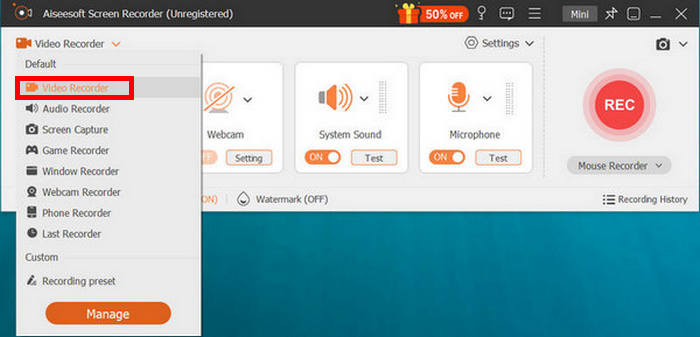
Step 2. Launch the program and click on Video Recorder, open your WhatsApp, and start making a video call.
Step 3. Now, once there’s an ongoing WhatsApp video call and you’ve clicked the Video Recorder, you can adjust the recording area for the screen. Choose the source audio from system audio or the microphone.
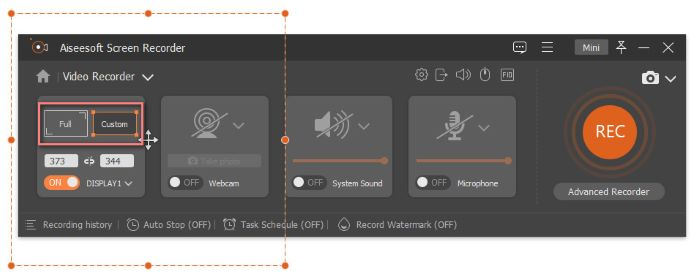
Note: The Duration feature is used to record a video call for a certain time.
Step 4. If you’re done with the WhatsApp record video mode during your video call, just click the Stop button.
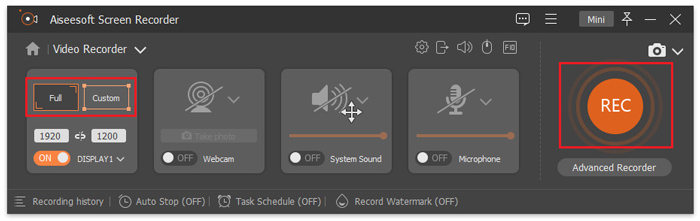
See, FVC Screen Recorder makes it easy for us to record any type of circumstance, even a WhatsApp video call. With just a few clicks, you can start recording and save your video calls.
Part 3. How Does WhatsApp Record Video on a Phone
If you prefer making WhatsApp video calls on your phone, you can still record them easily using your device’s built-in features. Both iPhone and Android devices now come with screen recording tools that can screen record your WhatsApp video calls with just a few taps.
How to Record a WhatsApp Video Call on iPhone:
Step 1. Open the Settings app on your iPhone, go to Control Center, and select Customize Controls. From there, add Screen Recording so it appears in your Control Center.
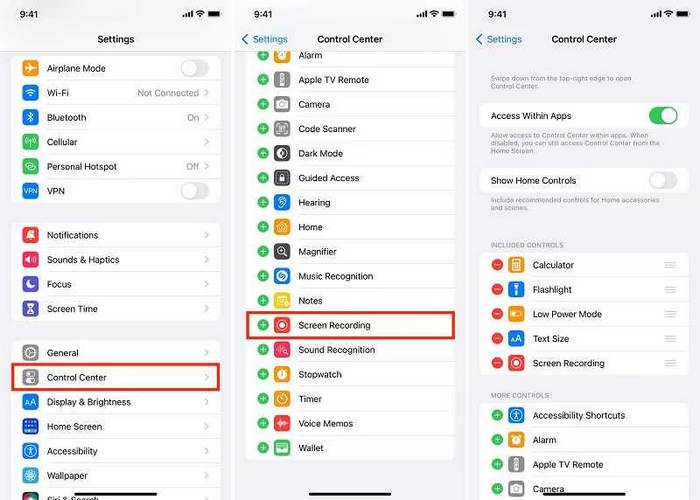
Step 2. Once done, swipe to open the Control Center and tap Screen Recording to start. Then, open WhatsApp and begin the video call you want to capture.
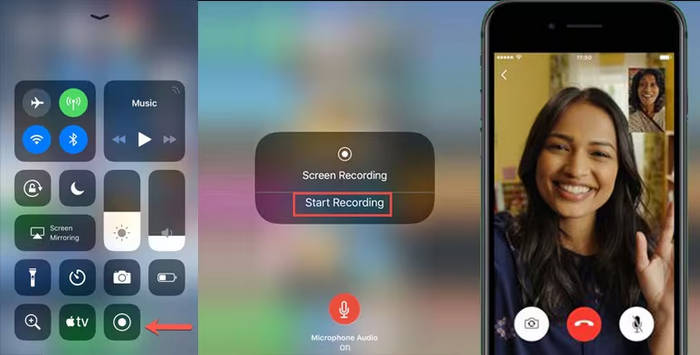
Note: A red bar will appear at the top of the screen, showing that the recording is in progress.
Step 3. When you are done, tap the red bar and select Stop. The video recording will be automatically saved in your Photos app.
How to Record a WhatsApp Video Call on Android:
For Android users, they can use the Android Screen Recorder app. This application provides an efficient and simple way to screen record on Android devices, including WhatsApp video calls. To do this, follow the steps below:
Step 1. First, you need to download and install the app. After that, open the tool.
Step 2. Set the options for capturing. Here, you can adjust the video size, bit rate, duration, etc.
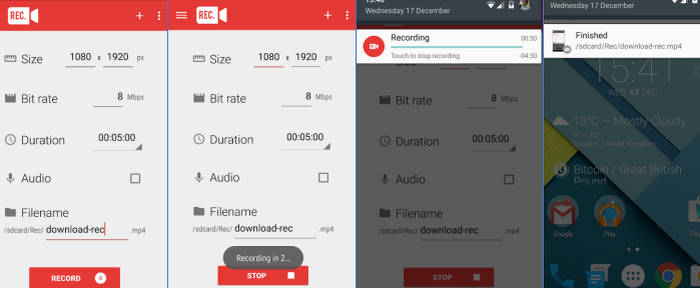
Step 3. Next, while you’re having a WhatsApp video call, click the Record button in the app to start recording your video call.
Step 4. Once done, you can find the saved video call on your Android.
Part 4. Things You Should Notice When Recording a Video from a WhatsApp Call
Before you record a WhatsApp video call, keep these important reminders in mind:
• Always ask for consent from the other person before recording.
• Make sure your device has enough storage space for the recording.
• Check that your microphone and camera permissions are enabled.
• Keep your internet connection stable to avoid poor video or audio quality.
• Close unnecessary apps to prevent lag or interruptions during recording.
• After recording, review and delete unnecessary files to protect privacy.
Click here to learn more about the Facebook call recorder if interested.
Part 5. FAQs about Recording a WhatsApp Video
Does WhatsApp notify others when you record a video call?
No, WhatsApp does not send any notification or alert when you record a video call. However, it’s always best to ask for permission before recording to respect the other person’s privacy.
Why can’t I record WhatsApp video calls directly in the app?
WhatsApp doesn’t have a built-in recording feature because it uses end-to-end encryption, which ensures that only participants in the call can access the content. This design helps maintain privacy and data security for all users.
Why is there no sound in my WhatsApp video recording?
If your recording has no sound, it might be because the microphone or system audio was not enabled during the WhatsApp video recording. Make sure your recorder app has permission to access audio, and that the microphone is turned on before starting the call.
Conclusion
Recording a WhatsApp video call may not be possible directly within the app, but as this WhatsApp record a video guide shows, there are simple and effective ways to make it happen. Whether you’re using a PC, Mac, iPhone, or Android, tools like FVC Screen Recorder and built-in screen recorders can help you capture important calls with clear video and audio.
Just remember to always ask for consent, ensure your device is ready, and follow the right steps to achieve the best results. With the right method, you can easily record WhatsApp video calls.
-
 8 Best Mouse Recorders to Easily Capture Mouse Cursor
 Looking for a Mouse Recorder to record your mouse movements? Here are the 8 best mouse recorder tools to help you improve your productivity and workflow.
-
 How to Easily Record Screen Using VLC [Complete Guide]
 If you’re wondering how to record your screen using the VLC screen record feature, don’t fret! This article will teach you four easy ways to do it like a pro.
-
 How Can You Screen Record Snapchat Without Notification
 Want to screen record Snapchat without triggering notifications? Read this guide to see if any of the three solutions here can solve your problem with ease.
