


 Video Converter Ultimate
 Screen Recorder
 Video Repair
 Secure Download
Does Canva Record Your Audio? Here’s What You Need to Know
Canva has become one of the go-to tools for creating engaging visual content, from presentations and videos to social media posts. But when it comes to adding voiceovers or recording your own audio directly, many users still wonder if Canva can actually record sound.
In this guide, we’ll walk you through how to record audio on Canva using its built-in recording studio, explore its features and limitations, and introduce you to a free online alternative that lets you capture both internal and external audio easily. So, what are you waiting for? Let’s explore what Canva can do more when it comes to recording audio.

Part 1. Does Canva Record Your Audio?
Canva is widely known for its simple yet powerful design tools that let users create presentations, videos, and marketing materials effortlessly. What’s even more useful is its built-in Recording Studio, which allows users to record their own voice directly within the platform. This makes it easy to add personalized voiceovers to their slides, video projects, or tutorials without needing a separate audio editor.
Main Features:
- Record voiceovers directly while presenting or editing.
- Built-in mic access for quick audio capture.
- Allows previewing and re-recording until you’re satisfied.
- Audio syncs automatically with your presentation slides or video timeline.
Limitations:
- Cannot edit audio after recording.
- No option for offline recording.
- Records only external audio, not internal sound.
- Lower audio quality compared to dedicated recorders.
Overall, Canva’s recording studio is convenient for quick voiceovers and presentation narration. However, if you need more control over your audio, such as recording both internal and external sounds or adjusting sound quality, you might need to use a dedicated screen or audio recorder.
Part 2. How to Record Audio on Canva?
Now that you know it’s possible to record audio on Canva, the platform makes it even easier with its built-in Recording Studio. This feature lets you capture your voice directly within your presentation or video project, perfect for adding narration, explanations, or personal messages without leaving Canva. It’s simple to use, works entirely online, and doesn’t require any third-party tools.
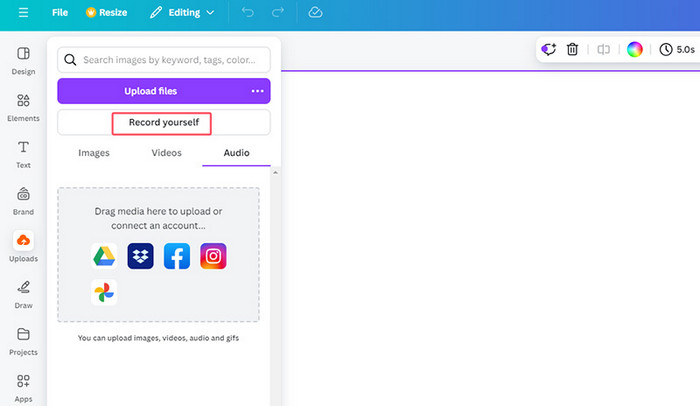
Here’s how you can record your audio in Canva:
Step 1. Open your Canva project and go to the editor menu bar. Click Present, then select Present and record to begin setting up your session.
Step 2. Click Go to recording studio to access the recording interface. When prompted, allow Canva to use your microphone and camera. If you have more than one device, choose which microphone and camera you prefer.
Step 3. Click Start recording and begin presenting your content naturally, just as if you were speaking to an audience. Make sure to articulate clearly for the best audio quality.
Step 4. Once you’re done, click End recording in the top corner of the screen. Canva will automatically save your recording, which you can later attach to your presentation or video.
The thing with this feature in Canva is that it only records your external audio, meaning it captures sound from your microphone but not the internal audio from your device. This can be limiting if you want to include background music, system sounds, or other media playing on your computer. Nonetheless, if you just want the easiest way to record audio in Canva, then this would be a great deal.
Part 3. Best Alternative to Record Audio Freely online (Internal & External)
If you want a more flexible way to record audio for your Canva projects, especially if you need to capture both internal and external sound, the FVC Free Screen Recorder is a great choice. This web-based tool lets you record high-quality audio directly from your browser without installing any software. It allows you to record audio in Canva with your microphone and your system sound, which the record studio is not capable of.
Main Features:
- Lets you record your entire screen, a specific window, or a custom area of your choice.
- Can be used directly from your web browser without installation.
- Ideal for recording video calls, meetings, gameplay, or online classes.
- Enables you to add text, shapes, highlights, and annotations while recording.
- Captures both system sound and microphone voice at the same time.
- Supports multiple video and audio output formats for flexibility.
- Records videos in high-definition quality.
- Works seamlessly on both Windows and macOS platforms.
How to Record Audio in Canva with FVC Free Screen Recorder:
Step 1. First, you need to look for the FVC Free Screen Recorder on your browser. Please note that it is available for both Windows and macOS.
Step 2. Now, access the tool and click Start Recording. After that, go to Canva and prepare to record your audio.
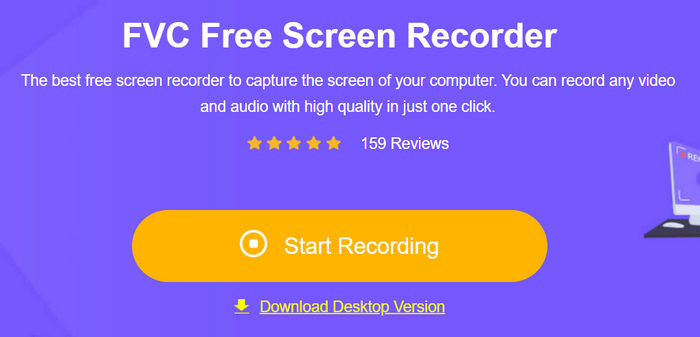
Note: Ensure to open your Mic when you finally start recording.
Step 3. Lastly, to finally start recording, click the Record button.
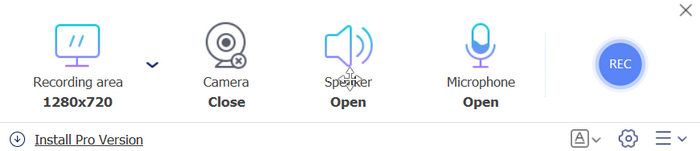
With FVC Free Screen Recorder, you can record both your microphone and system audio for Canva, giving you more control and higher-quality sound for your presentations and videos. It works smoothly on both Windows and Mac and doesn’t require any extra software, making it a convenient choice for professional-sounding recordings.
Part 4. FAQS on Recording Audio on Canva
Can Canva record audio directly?
Yes, Canva has a built-in Recording Studio that allows you to record audio on Canva. However, it only captures external audio from your microphone and does not record internal system sounds.
Can I edit my audio after recording in Canva?
No, once your audio is recorded in Canva, you cannot edit it within the platform. For more advanced editing or adding internal audio, you’ll need a separate tool like FVC Free Screen Recorder.
Is there a way to record both internal and external audio for Canva projects?
Yes, using a tool like FVC Free Screen Recorder, you can capture both your microphone and system audio at the same time. This allows you to add music, sound effects, or other media along with your narration for higher-quality recordings.
Can I use Canva’s Recording Studio offline?
No, Canva’s Recording Studio requires an internet connection since it is an online feature and does not support offline recording.
Conclusion
Knowing how to record audio in Canva makes it easy to add your voice to presentations and videos. Canva’s Recording Studio is great for quick and easy microphone recordings, but using FVC Free Screen Recorder lets you capture both your voice and system sounds, which offer more flexibility and better quality. However, regardless of this, choose what works best for your needs because with these tools, you can make your Canva projects more professional and engaging.
-
 How to Remove Canva Watermarks from Photos [Full Methods]
 Canva watermarks from photos are sometimes annoying. If you want to remove them, go to this post. We will guide you to learn how to remove a Canva watermark.
-
 How to Record Audio with VLC Media Player: A Complete Guide
 In this post, you will learn how to record audio with VLC Media Player. This article has detailed steps and will recommend one of the best alternatives to VLC.
-
 Any Video Recorder Review – Record Netflix Videos for Offline Watching
 If you want to use Any Video Recorder to get videos from YouTube or other sources, read this Any Video Recorder review first. Figure out if it's right for you.
