


 Video Converter Ultimate
 Screen Recorder
 Video Repair
TunesBro HEIC Converter: A Closer Look at HEIC to JPG Conversion
You probably saved a ton of images to your iPhone, and while working on a different device to open or edit them, you suddenly came face to face with the HEIC format. HEIC is a modern image file format developed by Apple that keeps images looking sharp and saves space, but this format might be inconvenient for working with image files sometimes. In these cases, a good converter is definitely your best choice. Mainly, if all that you need is a JPG file that is compatible with most applications, we'll get to a review of TunesBro HEIC Converter and see how it does with converting files and whether or not it makes an excellent everyday imaging tool choice.

How We Test and Review
- Our testing of the TunesBro HEIC Converter mostly includes transforming a collection of HEIC pictures to see if and how the ease, speed of conversion, and preservation of image quality are affected when the output format is JPG. Besides that, we look into its supported formats, batch conversion settings, pricing, etc., while also focusing on its general user-friendliness.
TunesBro HEIC Converter vs. FVC Free HEIC to JPG Converter
| Feature | TunesBro HEIC Converter | FVC Free HEIC to JPG Converter |
| Main Purpose | Convert HEIC/HEIF images to JPG and other formats | Convert HEIC/HEIF images to JPG |
| Platform | Windows and Mac desktop | Web-based; works on Windows and Mac |
| Installation | Required | Not required |
| Batch Conversion | Yes | Yes, up to 10 files at a time |
| Output Quality | Adjustable quality settings | High-quality JPG conversion |
| Ease of Use | Simple desktop interface | Very simple, browser-based process |
| Price | Paid plans available | Free |
| Best For | Users who want a dedicated desktop converter | Users who want a quick, free HEIC-to-JPG solution |
Quick takeaway: If you really want a desktop converter, then the TunesBro HEIC Converter tool will provide you with great results, but if you are making the occasional conversion, it is better and cheaper to do this without downloading and installing the FVC Free HEIC to JPG Converter that is totally free!
Part 1. What is TunesBro HEIC Converter
TunesBro HEIC Converter is a desktop software you can use to change HEIC and HEIF pictures into more commonly usable formats like JPG, JPEG, PNG, and PDF. It offers support for both single-image and batch conversion, so a single photo is fine, or a group of photos can be processed together. Besides these, you also have the option to fine-tune the output quality and set the target folder to save converted files.
In this HEIC Converter TunesBro review, HEIC to JPG conversion is the major point to highlight, as the tool's functionality, ease of operation, conversion quality, offered features, and actual usability shall be the criteria.
Part 2. How to Convert HEIC to JPG with TunesBro HEIC Converter
Converting HEIC files to JPEG with TunesBro is really easy. This desktop program allows you to load either single files or several files, or even a whole folder, set the output format to JPG, change the picture quality manually if desired, and convert all at once by simply clicking on some buttons.
Steps to Convert HEIC to JPG with TunesBro
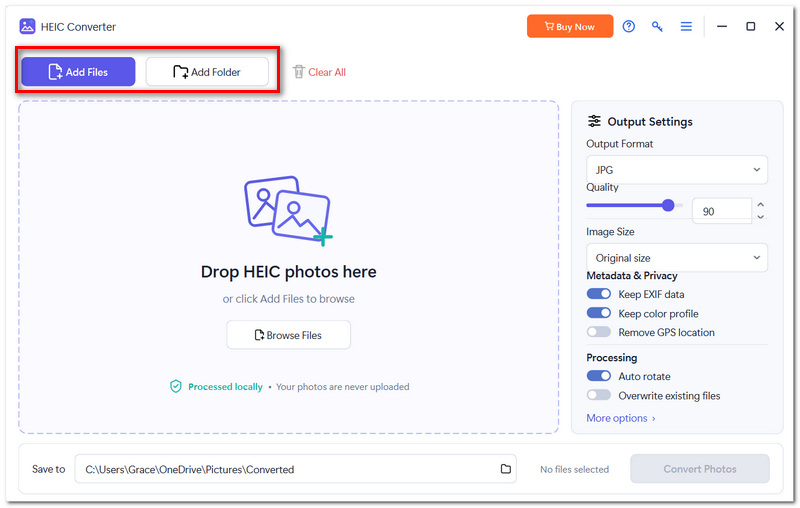
Step 1. First, download and set up TunesBro HEIC Converter on your computer. After that, open TunesBro HEIC and add the HEIC file or folder by clicking Add File or Add Folder. Also, you can just drop the files into the interface of the app.
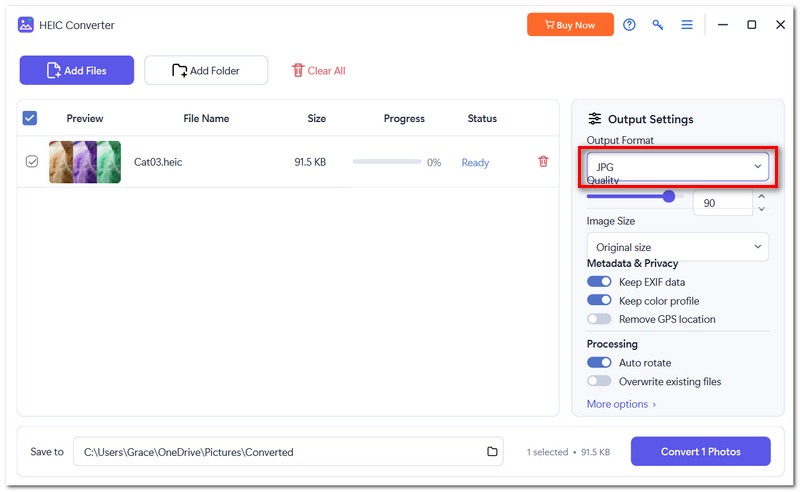
Step 2. In the Output Settings, select JPG as the output format.
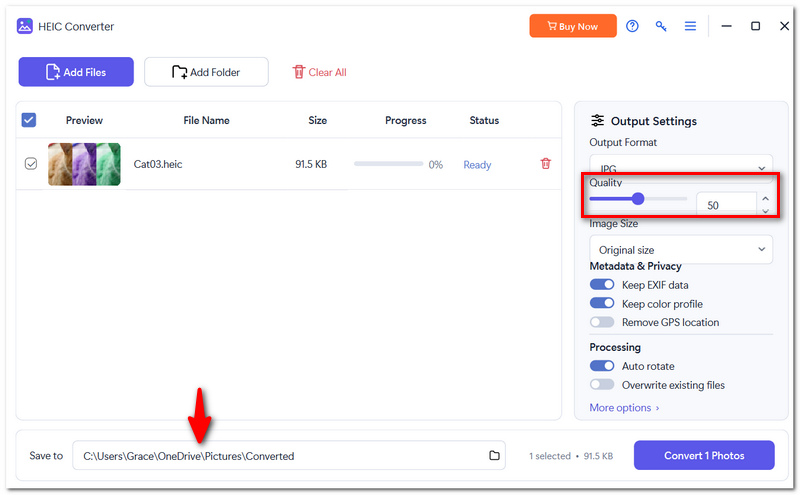
Step 3. Set the quality level of the images to a low or medium setting, and pick another location for the final images.
Step 4. The program will convert HEICs to photos in JPG format when you click the Convert button.
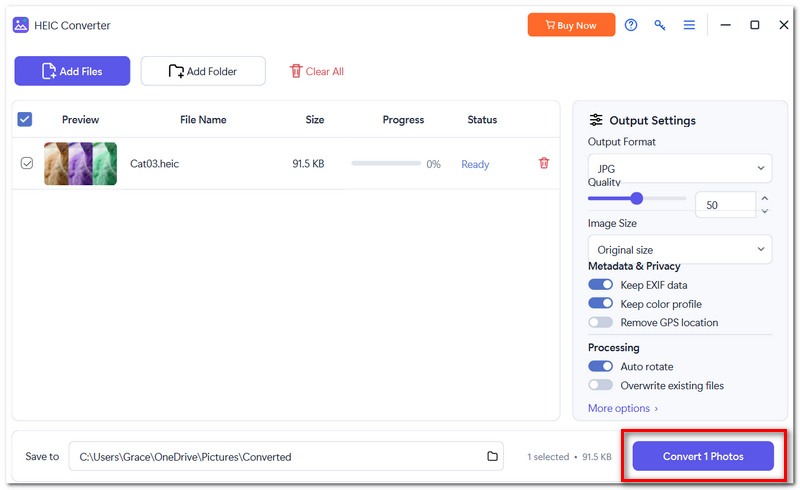
Step 5. After converting HEIC to JPG files, you can find and access your new JPG images inside the output folder.
Part 3. TunesBro HEIC Converter Review: Pros and Cons
TunesBro HEIC Converter is quite user-friendly and gives the essential functionalities you would look for in an HEIC converter. Yet, there are a couple of drawbacks that you should be aware of:
Pros
- Regardless of your level of expertise, you can understand the interface easily.
- Convert several HEIC files in one go.
- You'll get the most out of the program if you support JPG, JPEG, PNG, and PDF as output formats.
- You can decide how good the output image from the converter will be.
- This function helps you get your file into the converter quicker.
Cons
- You have to buy a subscription plan to keep using it.
- This does not work as a web browser-only application.
- Basically, it's a HEIC converter with some extra features.
- There are many other tools that can change an HEIC photo to a JPG without having you pay for the software.
Part 4. TunesBro HEIC Converter : Pricing and Safety
TunesBro HEIC Converter isn't entirely free, although it does offer a free trial for certain users to try out a limited version of the app. Their newest official pricing website shows various plans that you can get based on how long you want to keep the software.
Pricing
- • 1-Month License: $14.95
- • 1-Year License: $22.95 (Windows) / $19.95 (Mac)
- • Lifetime License: $29.95
- • 30-day money-back guarantee
The monthly and annual subscriptions will renew automatically, while a lifetime license means a one-time purchase only.
Is TunesBro HEIC Converter Safe?
Besides being virus- and plugin-free, the software from TunesBro guarantees safe and secure purchases through its SSL encryption. It offers a 30-day money-back guarantee as well.
Remember that the TunesBro HEICConverter free version is a desktop version, but it's definitely a paid tool. FVC Free HEIC To JPEG Converter might be a better option in case you only need to do the conversions once in a while.
Part 5. Best TunesBro HEIC Converter Alternative
If you simply want an easy way to convert HEIC images to JPEG, you might not have to install another desktop application. FVC Free HEIC to JPG Converter is a great web-based option and lets you convert HEIC files without even leaving the browser. Up to ten files can be uploaded simultaneously, and all of them can be converted for free.
Main Features
- • Free-to-use
- • Use without installing any software
- • Converts HEIC to JPG/JPEG
- • Maintains original EXIF information
- • Deletes uploaded files automatically after the conversion is complete
How to Convert HEIC to JPG with FVC Free HEIC to JPG Converter
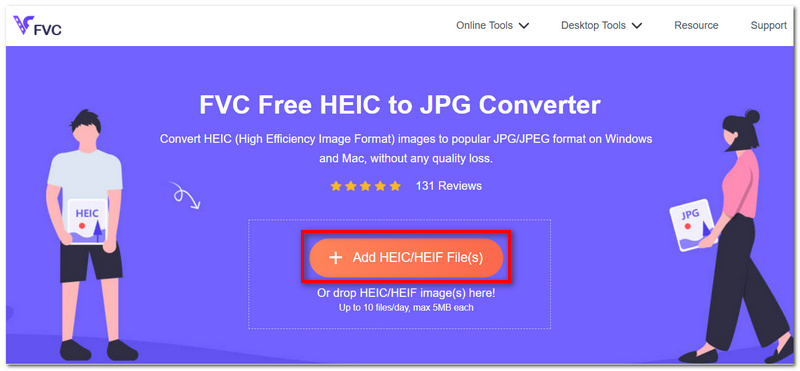
Step 1. Visit the FVC Free HEIC to JPG Converter website. Click on the Add HEIC/HEIF File button to upload your HEIC image.
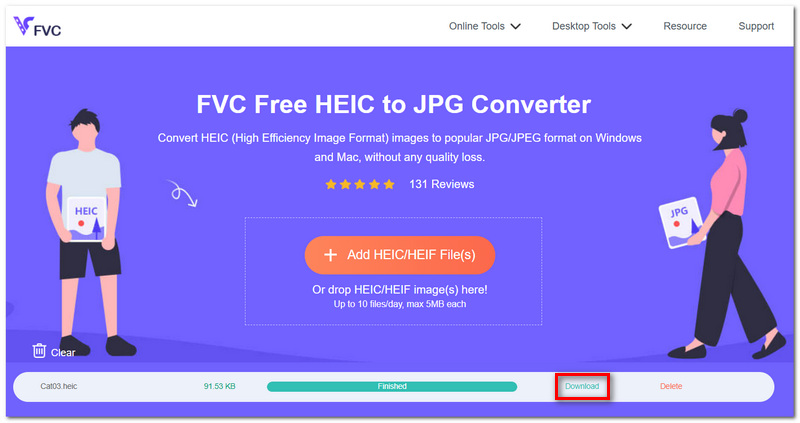
Step 2. Just let the tool finish converting your file into a JPG. No action needed.
Step 3. Hit Download to save your transformed file.
Why FVC Overshadows TunesBro HEIC Converter
What stands out most is convenience. Although TunesBro HEIC Converter requires installation and a paid license, FVC Free HEIC to JPG Converter will allow you to convert HEIC images to other formats on the web without costing you any money. If you only need a quick HEIC-to-JPG conversion, it is just what you need, with no extra paid software for your computer.
Part 6. FAQs about TunesBro HEIC Converter
Can TunesBro convert HEIC files captured from iPhone to PDF?
Yes, a quick glance at TunesBro will reveal its various output formats. For instance, there are also JPG, JPEG, and PNG listed here.
Is it possible for TunesBro to convert HEIC images stored in an iPhone backup?
Actually, TunesBro cannot convert directly from an iPhone backup. Normally, you will have to obtain or extract the HEIC images first and then import them into TunesBro.
In case I don't receive my TunesBro license key, what do I do?
TunesBro informs you that the email address connected to the purchase will be the one used to get the license keys. However, if yours haven't arrived yet, the company suggests contacting their support team.
Conclusion
HEIC is a compact image format that will conserve storage space, though there may still be compatibility problems when sharing or opening photos on different devices. Once you know the converter's behavior with image quality, file formats, batch processing, and privacy, you will have no difficulties in selecting the right tool. There are free alternatives you should consider if you are thinking about whether to use the TunesBro HEIC Converter free version or not.
-
 How to Open HEIC File on Windows, Mac, and Online
 Are you looking for a way how to open HEIC files? This article provides you with the best solutions to open HEIC files on Windows, Mac, and Online.
-
 How to Fix HEIC Photos? Best and Easy Ways to Open
 Can’t open HEIC Photos on your Windows PC? This article will teach you the best and easy ways how to fix HEIC photos and open them on your Windows PC.
-
 Why Are My iPhone Photos Are on HEIC Format [Reasons and How to Solve]
 Do you want to know why are my iPhone photos are in HEIC format? This article provides credible evidence on what makes HEIC the best.
