


 Video Converter Ultimate
 Screen Recorder
 Video Repair
 Secure Download
How to Turn Live Photos Into a Video on iOS & macOS?
iPhone has taken the photo experience to the next level by allowing users to capture a 3-second moving image through the Live Photos feature. Unlike traditional photos, Live Photos record a few seconds of motion and sound before and after the shutter is pressed, making every captured moment feel more lively and realistic.
However, there are instances when you need to turn Live Photos into a video, especially if you want to share them on different platforms, edit them further, or save them in a more widely supported format. The good thing is that Apple offers several ways to do this on both iOS and macOS devices.
In this article, we will guide you through 3 of the best ways to convert Live Photos into a video. Along the way, you will also learn why converting Live Photos can be beneficial and how to choose the method that best suits your needs.

Part 1. How To Turn a Live Photo Into a Video [iOS]
Since the iPhone has popularized the Live Photo feature, many users have relied on it to capture moments with a little more life and movement. While Live Photos are great for preserving memories, there may be times when you want to convert them into a video for easier sharing, editing, or compatibility with other devices and platforms. Fortunately, iOS offers a simple way to turn a Live Photo into a video without requiring any third-party application. Follow the steps below to learn how.
Step 1. Launch the Photos app on your iPhone or iPad and navigate to the Collections tab.
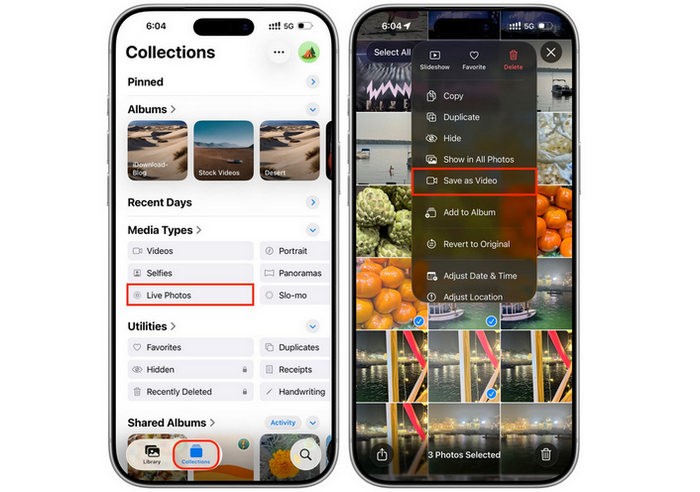
Step 2. Scroll down to the Media Types section and select Live Photos to view all your Live Photo files.
Step 3. Open the Live Photo that you want to convert. If you want to convert multiple Live Photos at once, tap Select and choose the desired photos.
Step 4. Tap the three-dot icon in the upper-right corner and choose Save as Video. Your Live Photo will then be automatically converted and saved as a video in your Photos library.
Part 2. How to Make a Live Photo Video on Mac
If you are using a Mac, you can also convert a Live Photo into a video directly from the Photos app. This method is ideal for users who prefer managing and organizing their media files on a larger screen. By exporting the Live Photo from the Photos app, you can save it as a video file that is easier to share, edit, and play on various devices. Follow the steps below to get started.
Step 1. Open the Photos app on your Mac and locate Live Photos from the Media Types section in the left-hand sidebar.
Step 2. Select the Live Photo that you want to convert. Once selected, click File, choose Export, and then select Export Unmodified Original for 1 Photo.
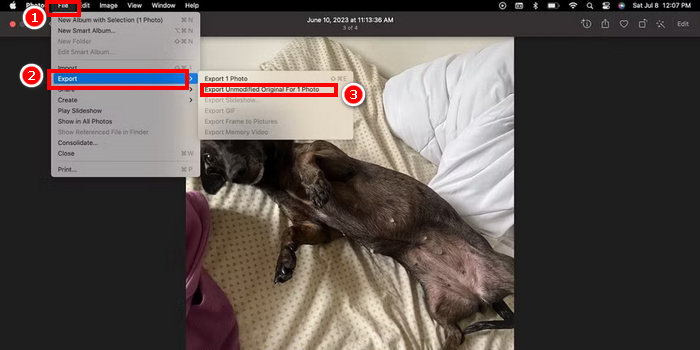
Step 3. Choose the folder where you want to save the exported files and enter your preferred file name.
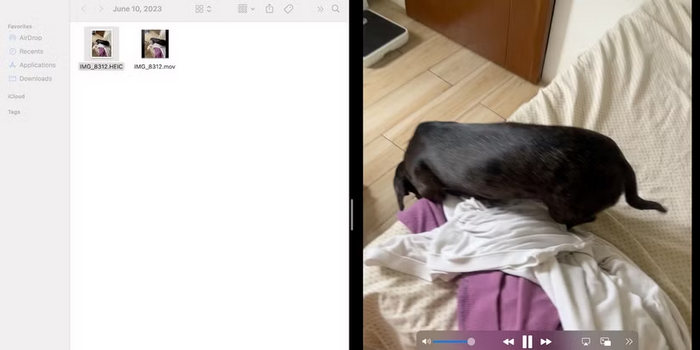
Step 4. Navigate to the destination folder and check the exported files. You should find a video version of the Live Photo saved as a MOV file along with the original photo file.
Part 3. How to Convert a Live Photo Into a Video [No Quality Loss]
While the built-in methods on iPhone and Mac can turn Live Photos into videos, they offer limited customization options. If you want more control over the output settings and ensure that the original quality is preserved, using a dedicated video converter is a better choice. One of the best tools for this task is FVC Video Converter Ultimate.
This method is especially useful if you plan to share your Live Photos on social media platforms like Instagram, where video formats are more widely supported and easier to upload. By turning your Live Photos into videos, you can make your content more compatible for Stories, Reels, posts, and other sharing platforms while preserving the original motion and visual quality.
Features of FVC Video Converter Ultimate:
- • Converts Live Photo video files to popular formats such as MP4, MOV, AVI, and more.
- • Preserves the original video quality during the conversion process.
- • Allows you to adjust video settings, including resolution, frame rate, and bitrate.
- • Includes built-in editing tools for trimming, cropping, rotating, and enhancing videos before exporting.
- • Supports batch conversion for converting multiple Live Photo videos at once.
- • Fast conversion speed with hardware acceleration for a smoother workflow.
Steps on How to Use FVC Video Converter Ultimate:
Step 1. First, you need to download and install the FVC Video Converter Ultimate tool on your computer.
Free DownloadFor Windows 7 or laterSecure Download
Free DownloadFor MacOS 10.7 or laterSecure Download
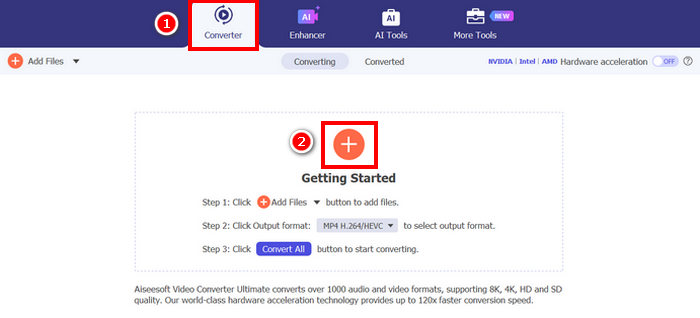
Step 2. Next, launch the tool and click the Converter tab, and from there, import the live photo that you want to turn into a video by clicking the Add Files button.
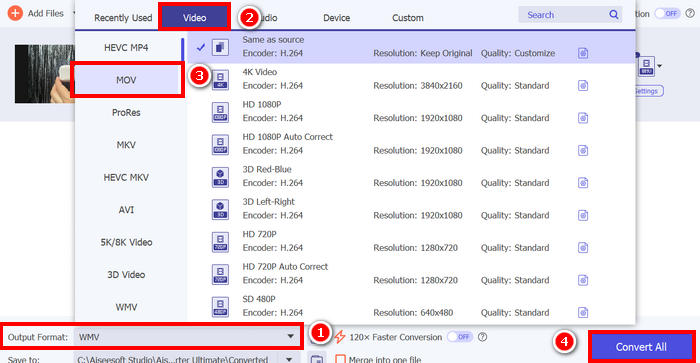
Step 3. After that, choose your output format by clicking the Output Format below. Also, from there, click the Video tab and choose MOV. Once done, click the Export button.
FVC Video Converter Ultimate is a practical solution for turning live photos into videos without quality loss. Unlike built-in methods that offer limited output options, it lets you save your Live Photo in formats that are more compatible with various devices, editing software, and social media platforms. It also gives you the flexibility to enhance and customize your video before exporting, making it ideal for users who want both convenience and quality in one tool.
Part 4. FAQs about Turning Live Photos Into a Video
Will converting a Live Photo into a video reduce its quality?
No, turning a live photo into a video will not reduce its quality if you use the built-in iOS or macOS tools. If you use a third-party tool like FVC Video Converter Ultimate, you can even preserve or further enhance the original quality depending on your export settings.
Can I turn multiple Live Photos into one video?
No. However, on iPhone, you can select multiple Live Photos and save them as videos individually.
Why is my Live Photo not saving as a video?
This usually happens when the Live Photo feature is not properly enabled, or the file is not fully downloaded in iCloud. Make sure the Live Photo is complete, then try again using the Photos app or export it through a Mac or third-party tool.
Conclusion
Turning live photos into a video is a simple process that can be done using built-in tools on both iOS and macOS, making it easier to share and enjoy your moments across different platforms. Whether you prefer using your iPhone, Mac, or a more advanced tool like FVC Video Converter Ultimate, each method offers a reliable way to convert your Live Photos while maintaining quality.
By choosing the right method based on your needs, you can easily save, edit, and share your Live Photos in a more flexible video format.
-
 Convert HEIC to JPG with the 6 Effective Offline & Online Ways
 Do you want to know how to convert HEIC to JPG? In this case, we add 6 online and offline ways you can use to completely finish and handle this task.
-
 What Is a HEIC File: Understand the Image Format and More
 Do you have a HEIC file on your iOS? Have you ever wondered what the file is all about? If so, this article got you covered; read this article to know what is HEIC file.
-
 Convert HEIC to PDF Using Top 4 Improved Ways on 2025
 If you want to turn your live photos into a video, you can do so in various ways. Read this article and be guided by 3 ways that can help you navigate this process.
