


 Video Converter Ultimate
 Screen Recorder
 Video Repair
 Secure Download
4 Easy Ways to Lower a Video's Frame Rate for Smaller Files
You can definitely not record or export every video at the highest frame rate. In fact, lowering the FPS has become one of my go‑to moves whenever I am thinking of saving storage space, making videos easier to share, or going for a more cinematic look. Of course, you have to be very careful so that the quality is not compromised greatly. Still, if the phrase running through your mind is lower frame rate of video, yes don't have to go through trial and error. This step‑by‑step guide meets you at various points, including desktop software, online tools, and video editors. At the end of it all, you will understand the method that suits your work style the best and know how to lower a video frame rate without hesitation.

Part 1. How to Lower the Frame Rate of a Video
It's actually quite simple to decrease a video's frame rate, even though you may not realize it upon first thought. You might want to do this for multiple reasons, like making the file smaller, ensuring it works on different devices, or giving it a 'movie‑like' feel. Regardless of your reason, there are very few tools that can't handle it, and here, I'll show you four basic ways to help you pick the one that is most suitable for your working style and other requirements.
Method 1. Lower FPS with FVC Video Converter Ultimate
For the most straightforward method to reduce the frame rate of video, FVC Video Converter Ultimate is an excellent pick. It allows you to alter a video's FPS within a few clicks without compromising the quality of the video. Apart from frame rate modulation, it can also do format conversion, video compression, and basic editing, so it's a full entertainment package for both newcomers and pros.
Main Features
- • Modify the frame rate to 24 FPS, 30 FPS, 60 FPS, etc.
- • We can change videos between 1000+ video and audio formats.
- • You can customize your video by changing parameters like resolution, bitrate, encoder, quality, and more.
- • You can convert multiple videos at once.
- • It also has integrated video editing tools like trim, crop, rotate, merge, and effects.
Free DownloadFor Windows 7 or laterSecure Download
Free DownloadFor MacOS 10.7 or laterSecure Download
Steps to Lower a Video's Frame Rate
Step 1. Get FVC Video Converter Ultimate and install it. Run the program and import the video for editing by clicking Add Files.
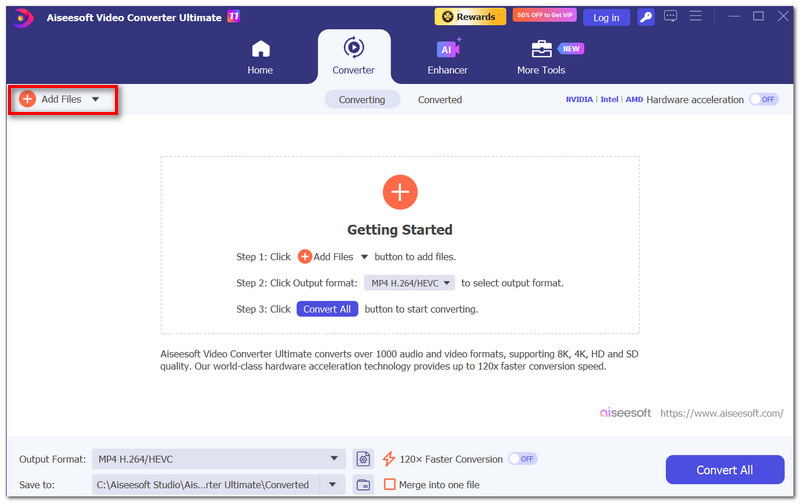
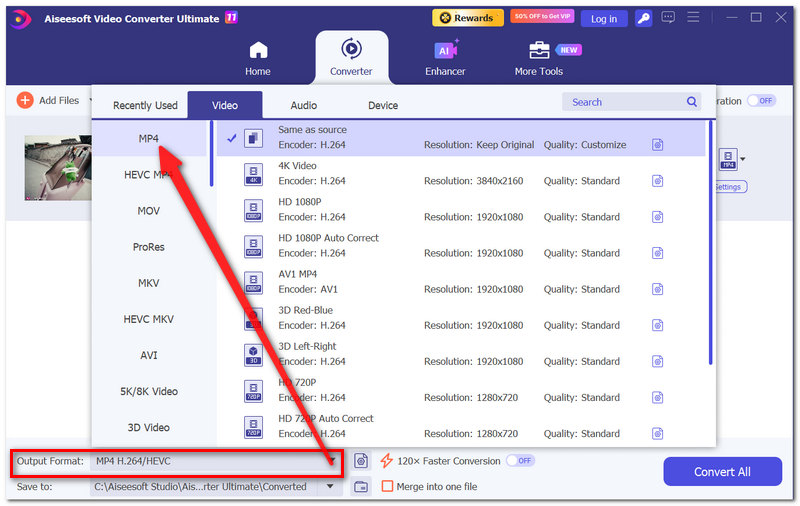
Step 2. Hit the Output Format button and select a video format you want (MP4, MOV, or AVI).
Step 3. Press the Settings (gear) button near the selected output format, go to the Video Settings section, and find Frame Rate.
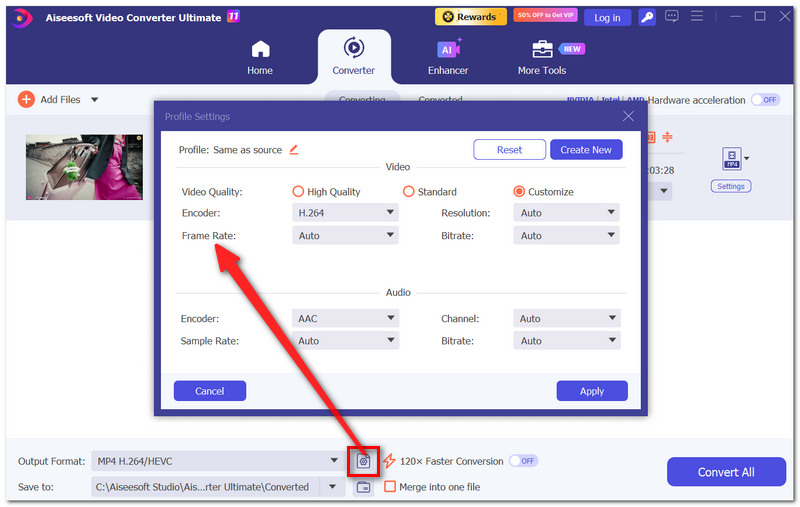
Step 4. Choose a smaller frame rate, like 24 FPS or 30 FPS, based on what you want.
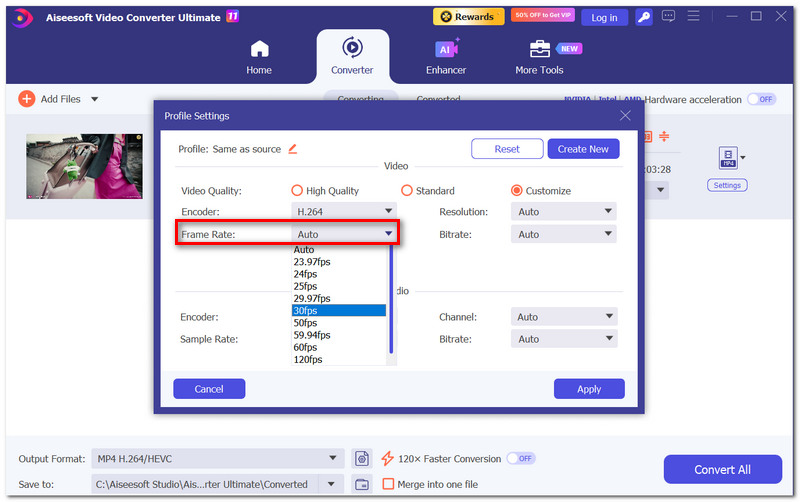
Step 5. Pick the folder where the converted file will be saved. Next is click on Convert All to export your video with the newly reduced frame rate.
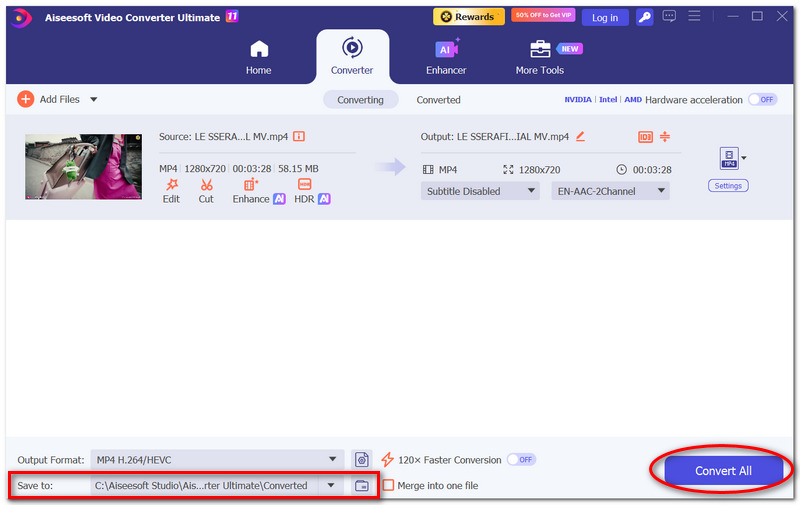
After the conversion, your video will be written with fewer FPS, thus saving storage space or achieving the visual style you desire.
Method 2. Change FPS Online Using HandBrake
HandBrake is a reliable video transcoder with a great ability to change lower frame rate of video by adjusting the FPS during conversion. It offers no advanced editing features and only a few simple tools, but it's a great option for compressing video and optimizing videos for playback on different devices.
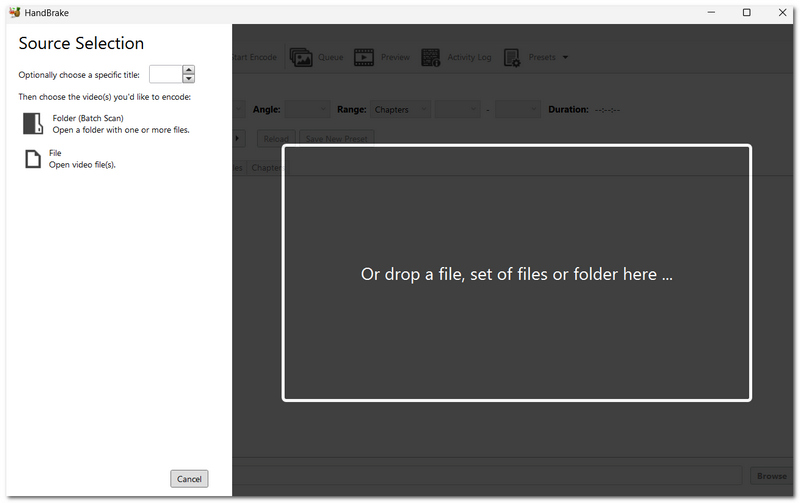
Step 1. Download HandBrake's latest version and install it on your PC. Open HandBrake. Then, either click File or drag the video to the main window.
Step 2. Give the output file a name and choose the location where you wish to save it.
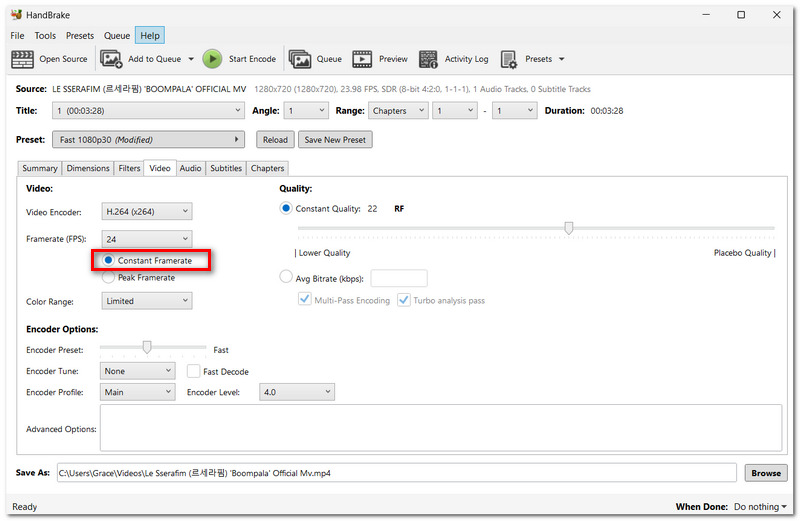
Step 3. Open the Video tab in the main panel. Find the Framerate (FPS) selection box and pick a lower frame rate like 24 FPS, 25 FPS, or 30 FPS.
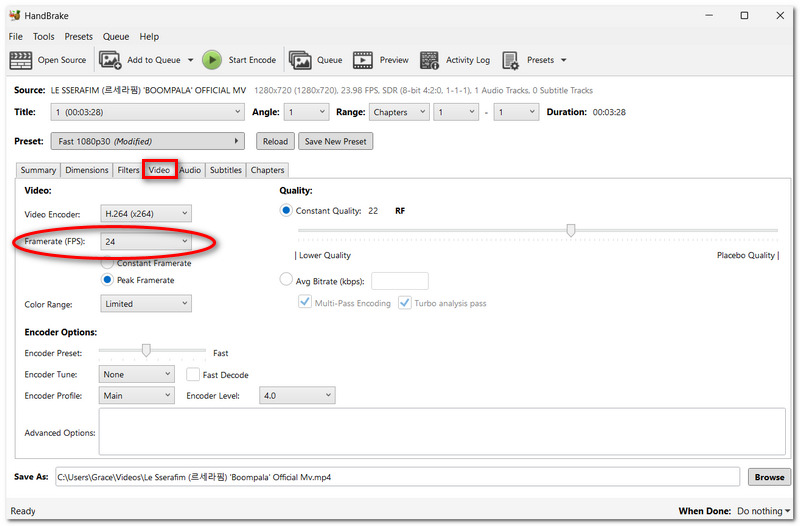
Step 4. Pick Constant Framerate from the Framerate Mode to ensure smoother playback on all devices. If required, take a look at further options like video codec or quality settings.
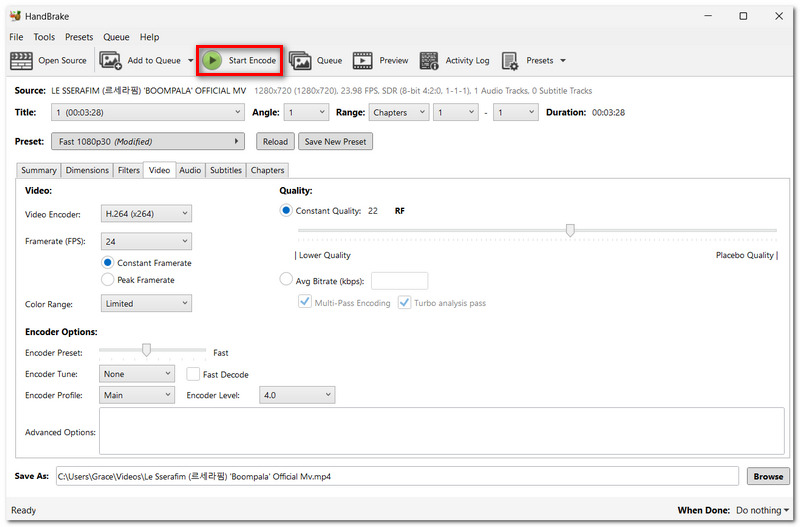
Step 5. Click the Start Encode button to initiate the video conversion. When the encoding is over, play the stored file to check that it has been changed to the new frame rate.
HandBrake is a great free option if you are seeking to lower a video frame rate easily and without the need to install a paid video editor.
HandBrake is a desktop video editor and not an online tool. In case you want to stick with a strictly online method, replacing HandBrake with a browser‑based service like Clideo or VEED would be a good option, while keeping HandBrake as a desktop method.
Method 3. Export at a Lower Frame Rate in CapCut
If you are used to editing your videos in CapCut, it is very easy for you to lower the frame rate when you export the video without changing the program. If you are a creator who wants to reduce the storage space or the video bandwidth, or if you want to create a more cinematic effect, this is a very useful option for you to consider as you complete your edits.
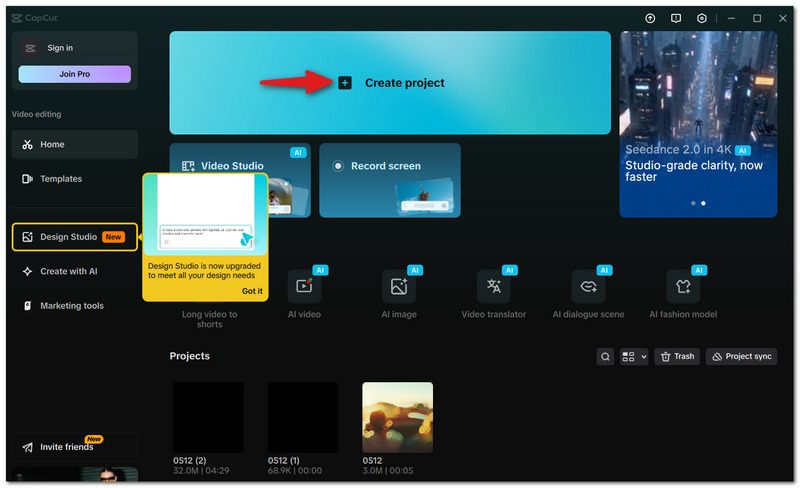
Step 1. Launch CapCut on your desktop and create a new project.
Step 2. Bring in the footage you'd like to work on, and drop it into the timeline. Do all the changes you want to make before you export.
Step 3. Click the Export button at the top right. Find the Frame Rate (FPS) option in the export settings window.
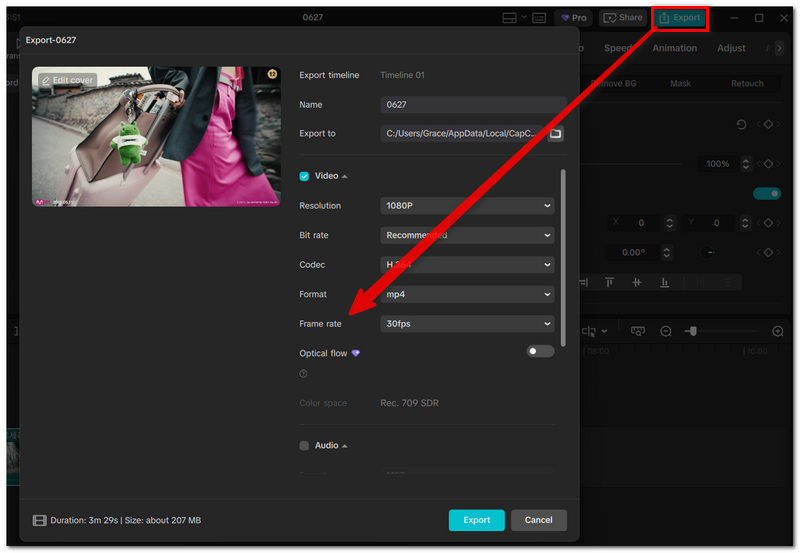
Step 4. Opt for a lower frame rate, for instance, 24 FPS or 30 FPS. Also, change the resolution and bitrate if necessary.
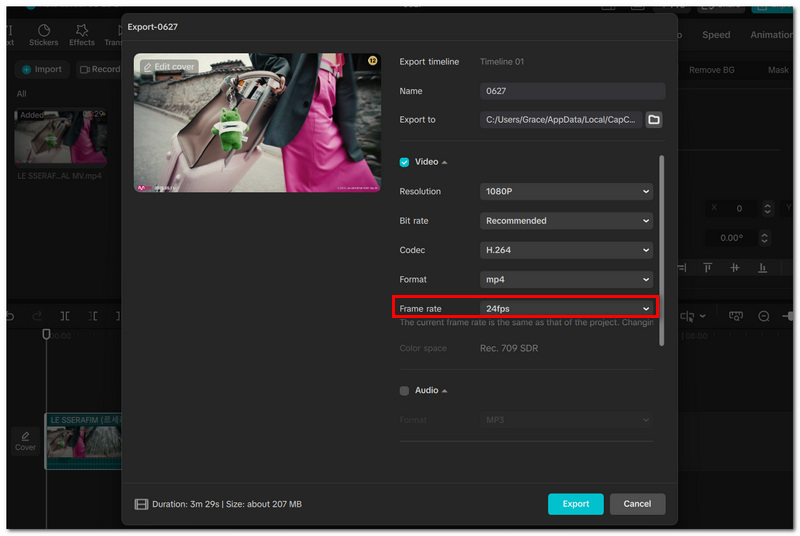
Step 5. Pick the directory for the output video and hit Export, then wait for CapCut to process the video with the adjusted FPS.
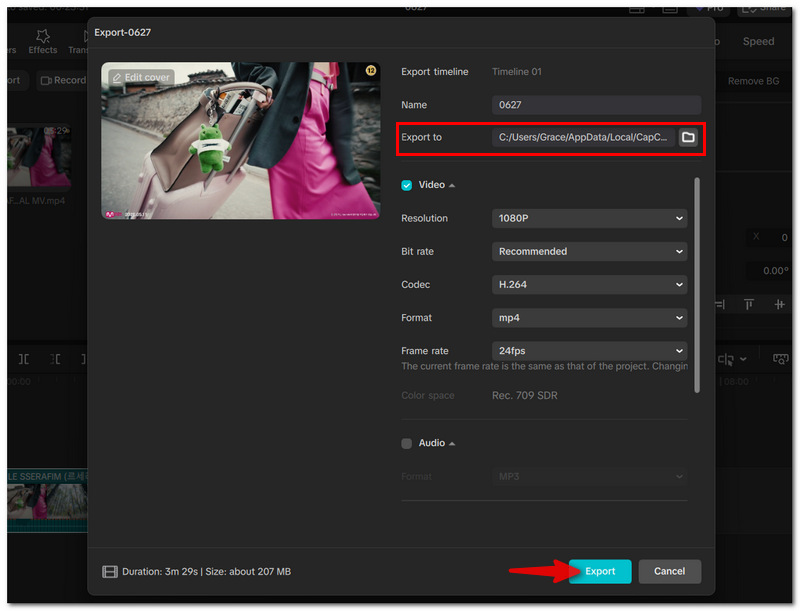
When the export finishes, you'll have a file with a reduced frame rate, which makes it more convenient for storage, sharing, or adjusting to the visual style of your choice.
Method 4. Advanced Conversion via VLC Media Player
VLC Media Player is not only capable of playing videos, but it also comes with a conversion tool feature that allows you to change different video parameters, such as the frame rate. Although the steps involved might be a bit more complicated compared to other ways, this method is a good free alternative if you have VLC already installed.
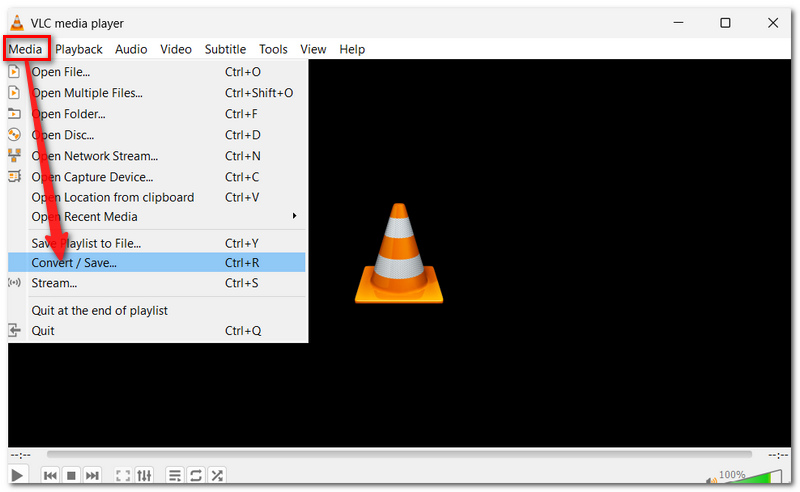
Step 1. Launch VLC Media Player on your PC and click on the Media picklist and then on Convert / Save.
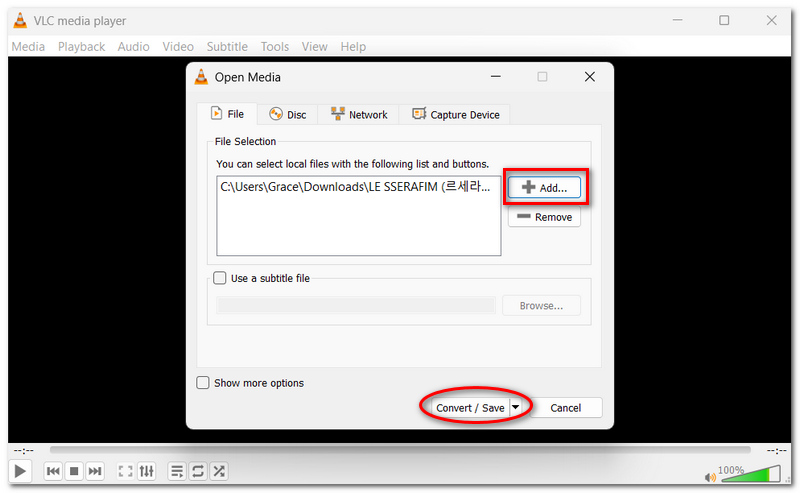
Step 2. In the File tab, click Add and browse to the video that you wish to convert. After that, hit Convert / Save at the bottom of the window.
Step 3. Select the output format you want under the Profile section, for example, Video - H.264 + MP3 (MP4).
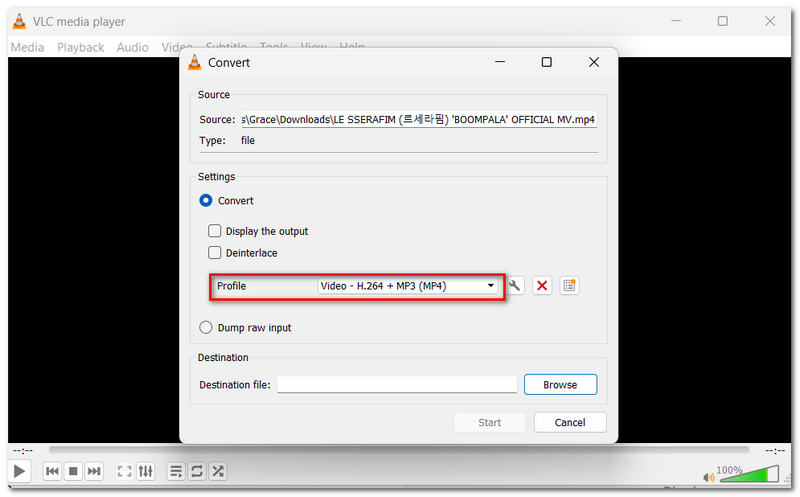
Step 4. Tap the Edit Selected Profile (wrench) button. Go to the Video Codec tab and modify the video settings. To lower the frame rate, enter a smaller FPS value in the Frame rate box.
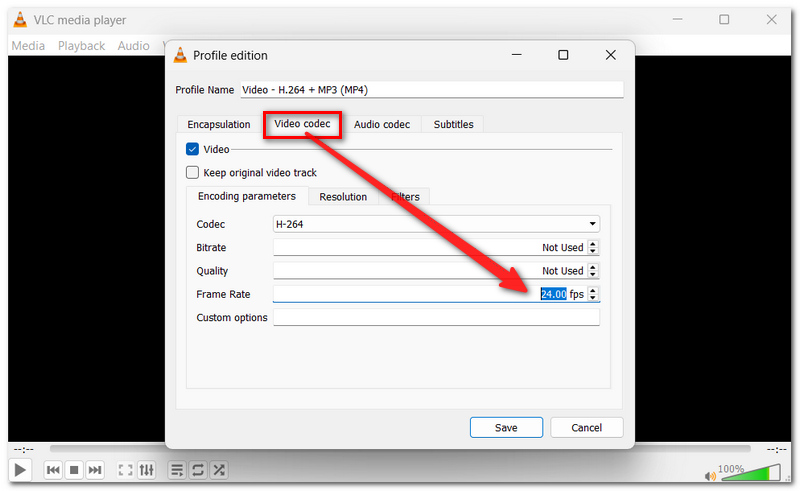
Step 5. Click Save to commit the profile modifications. To determine the output path, click Browse and specify the folder for saving the converted video.
Step 6. Click Start to launch the conversion.
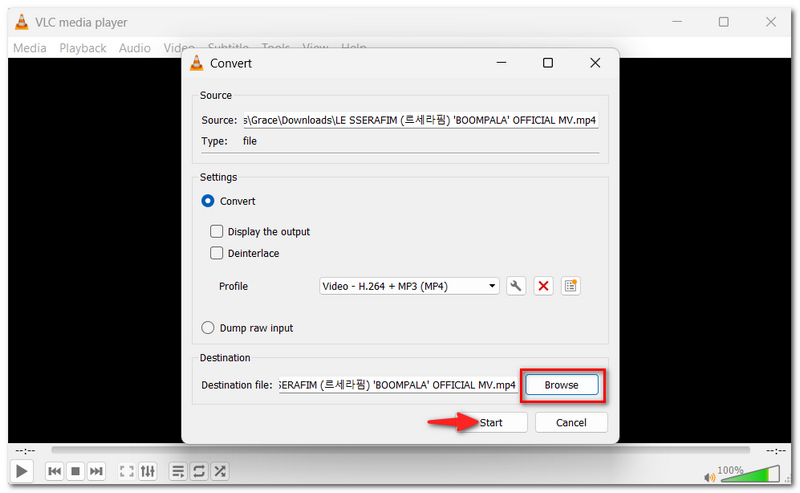
After it's done converting, VLC will generate a newly ramped‑down frame rate version of your video. This might be more storage‑space‑friendly or better compatible.
Part 2. FAQs about Lowering The Rate of Video
How to lower the frame rate of the video in Premiere Pro?
Import your video into Premiere Pro, finish your edits, then go to File > Export > Media. Under Video, choose a lower Frame Rate (such as 24 or 30 FPS), then export the video.
Does reducing the frames per second (fps) of a video help make the editing process easier for an older computer?
Of course. Videos with reduced frame rate have fewer frames to be processed, and the workload is lighter for the video card and CPU, so that they can do a better job during playback and editing, even on a low‑end device.
What is the reason that animated videos sometimes look good at reduced frame rates, whereas live‑action videos need to be at higher frame rates?
As a lot of animations have fewer different frames, in many cases, the drop in smoothness caused by a lower frame rate is not as noticeable as it is in live‑action footage.
Conclusion
Finding out how to lower the frame rate of video enables you to have better management of your content. For any reason, like saving storage space, improving compatibility, or crafting a cinematic look, there is always an appropriate method to choose, which can make the whole process quick and easy. Decide on the tool that is most suitable for your work style, and you will be able to change the FPS of your video without any extra trouble.
-
 Fraps Screen Recorder Review: Is it Still Worth It?
 Is Fraps Screen Recorder on your list, and want to know more about it? Read this in-depth review and learn what it is, how to use it, and if it is worth it.
-
 Ultimate Way to Easily Convert DVD Files to MPEG [Guide]
 Converting DVD files to MPEG is not complex only if you’re using the right tool and method. In this article, learn a tool that can help you easily convert DVDs
-
 3 Ways to Speed up Video on iPhone [Proven]
 Having trouble adjusting the playback speed of your video because you’re using an iPhone? This is an excellent article to help you with your issue.
