


 Video Converter Ultimate
 Screen Recorder
 Video Repair
 Secure Download
Best 8 Skype Call Recorders: Online, Built-in, & Desktop
During webinars or Skype calls, you might feel overwhelmed by the flood of information and struggle to take notes in time. Worried about missing crucial details?
No need to panic. Just as you'd record your screen or other activities, use a professional Skype call recorder to capture the entire conversation. We've curated 8 top alternatives for you, including 3 fast-loading, lightweight online solutions and 5 feature-rich, stable desktop applications.
To help you quickly narrow down options, we've summarized the pros and cons of each product. We hope this information proves useful.

How We Test
• Before recommending these Skype call recording software, we conducted thorough user needs research to ensure every suggestion genuinely helps you.
• After identifying tools with scheduled recording capabilities, we personally tested each one, focusing on ease of use, compatibility, recording quality, audio/video capture options, and availability of additional editing features.
• We also gathered extensive user feedback and referenced authentic reviews across major platforms to achieve objective comparison results.
• We consistently prioritize user input and regularly monitor market trends and competitor updates to continually refine our recommendations.
Part 1. 3 Online Skype Call Recorders
FVC Free Screen Recorder
Let's start with the ready-to-use online Skype video call recorder.
If you want to quickly record Skype calls without downloading or installing any software, FVC Free Screen Recorder is undoubtedly the ideal choice.
This online screen recording tool works directly in your browser. Simply visit its official website, locate the corresponding recording button, and start recording immediately. It can capture full screen, specific windows, or custom regions, while also capturing camera footage and system audio. After recording, you can adjust the video format and output quality. With FVC Free Screen Recorder, you can capture meeting call recordings with lossless audio and smooth, lag-free video.
To ensure a smooth experience, we've prepared a step-by-step guide:
Step 1. Open your browser and visit the FVC Free Screen Recorder official website.
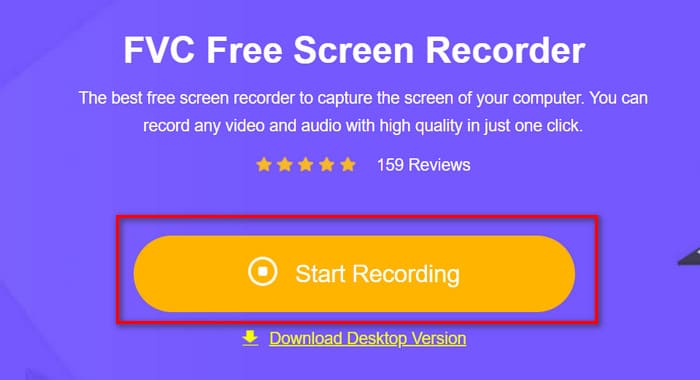
Step 2. Click Start Recording and follow prompts to install the lightweight browser plugin.
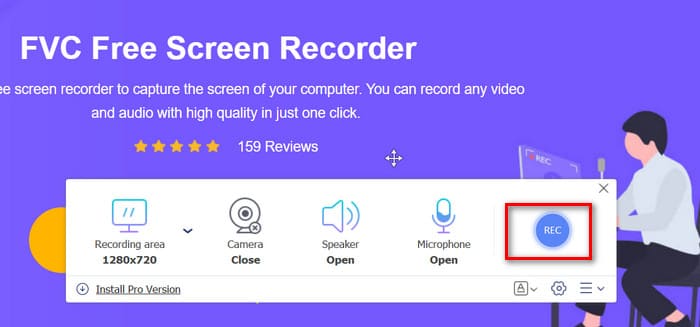
Step 3. Select the recording area and audio source, then click REC to start recording.
Pros
- No installation required.
- Output videos are watermark-free.
- Supports simultaneous screen and camera recording.
Cons
- More advanced features require upgrading to the desktop version.
Loom Screen Recorder
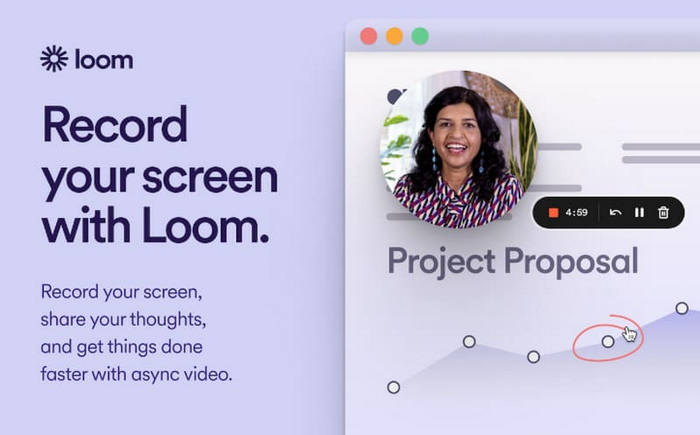
Sometimes, taking notes during a Skype meeting isn't just for your own memory—it's also to provide reference material for colleagues who share your concerns or couldn't attend that day. For users with team-sharing and collaborative editing needs, Loom is definitely worth trying.
This browser-based recording tool captures both screen and audio, supporting multi-user sharing, annotations, and comments. It integrates seamlessly with platforms like Gmail, Slack, Coda, and Intercom. You and your colleagues can effortlessly share recordings through these platforms, whether for remote work, online presentations, project updates, or other scenarios.
Pros
- Intuitive workflow—record in just a few steps.
- Supports team collaboration and multi-platform sharing.
Cons
- Limited functionality in the free version.
- Occasional crashes during recording.
Videocandy
I need the ultimate in speed and convenience. What are my options?
We recommend VideoCandy. It handles recording and basic editing directly in your browser, supporting simultaneous capture from your screen, camera, and microphone. With its fundamental trimming tools, you can easily adjust recorded clips—perfect for everyday use.
Pros
- No installation required—runs directly in your browser.
- Provides basic editing and cropping tools.
- Simple operation with no complex options.
Cons
- Dependent on internet connection.
- Limited functionality.
- Output quality may be slightly reduced.
Part 2. 5 Best Skype Call Recorders For Windows/Mac
Skype Built-In Recording Tool
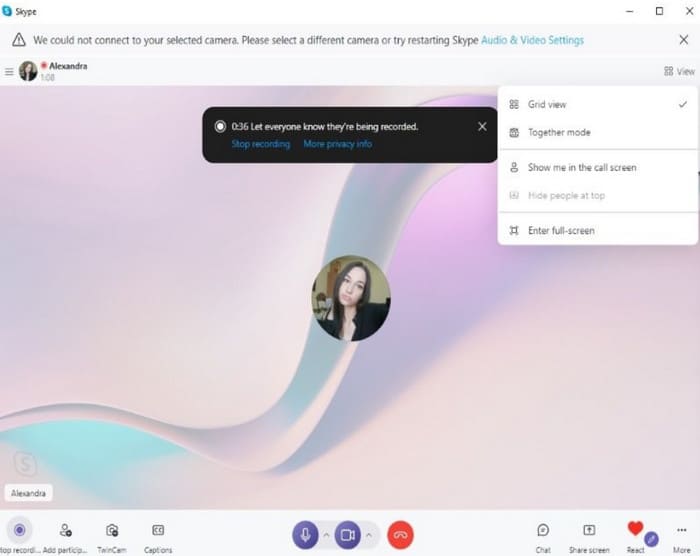
For users who prefer not to use any third-party software and wish to resolve all issues within a single platform, Skype's built-in recording feature offers the most convenient solution.
The built-in recording tool allows you to directly capture audio and video content, automatically saving it to the cloud for easy access and sharing anytime.
The entire process requires no complex setup. Whether you prepare recordings before a call or urgently need to capture important details mid-conversation, Skype's Built-in Recording Tool is ready to assist you instantly.
Pros
- Simple operation with minimal learning curve.
- No need to install additional third-party software.
- Automatic cloud storage for easy management and sharing.
Cons
- Very limited editing capabilities.
- Recordings are only stored for 30 days.
Aiseesoft Screen Recorder
You may have reservations about online tools, worrying that they could be affected by unstable network conditions, leading to interrupted recordings or files that fail to save properly.
For those prioritizing recording stability and professional output quality, we recommend trying desktop Skype call recorder software. Among these, Aiseesoft Screen Recorder is your top choice for capturing Skype calls.
Compatible with both Windows and macOS, it captures full screen, selected areas, or camera feeds while synchronizing system audio and microphone audio. Additionally, Aiseesoft's unique real-time video encoding technology ensures lossless, high-quality audio-video output. Practical features like window locking, editing tools, and keyboard shortcuts let you take real-time notes or mark up recordings effortlessly during capture.
Key Features
• Real-time video encoding for crisp, smooth visuals
• Window-specific recording to eliminate distractions
• Screenshot capture and annotation during recording
Pros
- Intuitive interface with straightforward operation
- Exceptional recording quality with HD output support
- Simultaneous editing and recording without watermark restrictions
Cons
- Some advanced features require subscription unlock
Here is how to use:
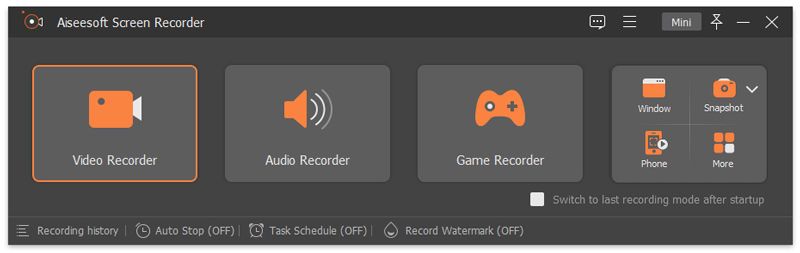
Step 1. Download and install Aiseesoft Screen Recorder on your computer. Once opened, click Video Recorder from the main interface.
Step 2. Decide whether you want to capture the entire screen or just a specific window or region. Go to Customize > Select region/window to define your recording zone.
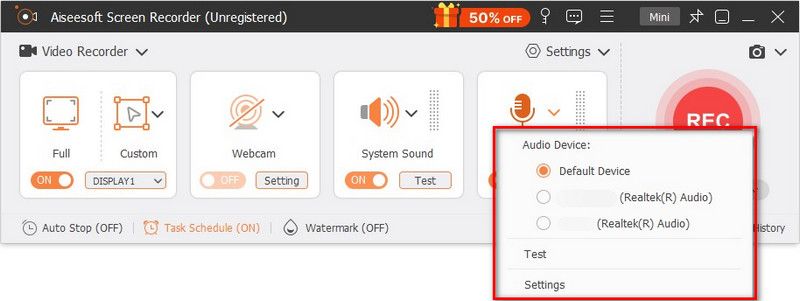
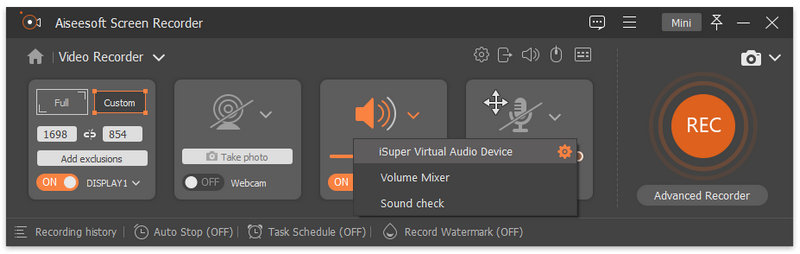
Step 3. Enable System Sound, Microphone, or both—depending on whether you want to record internal audio, external voice, or a mix of the two.
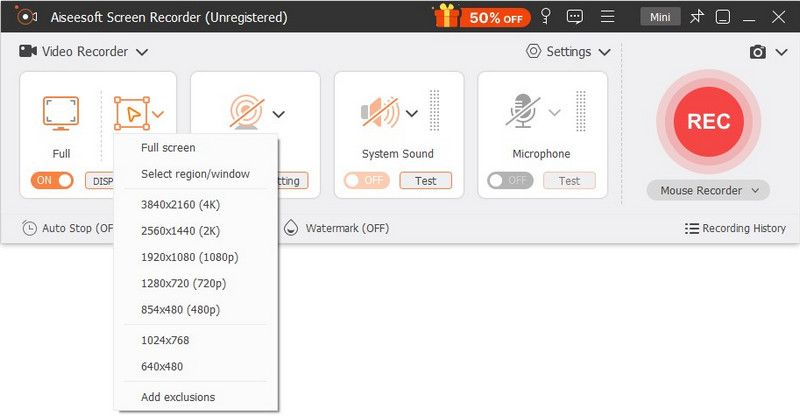
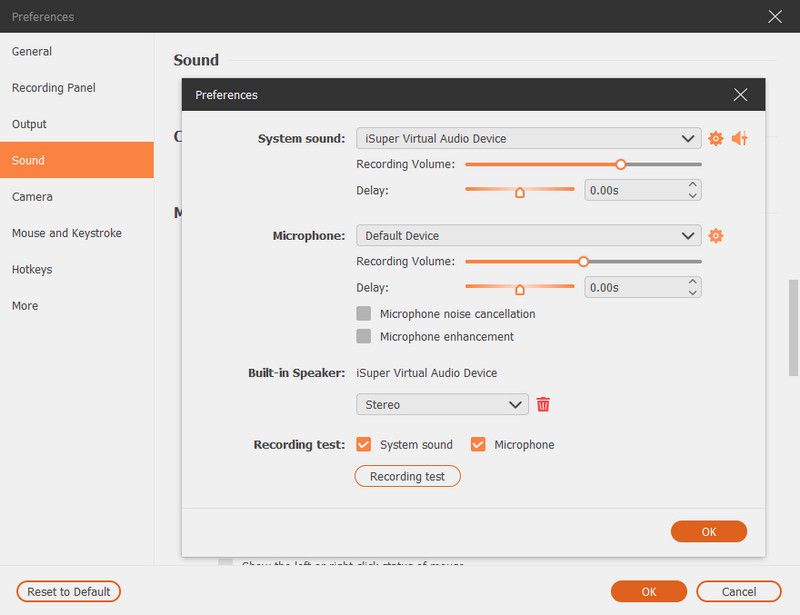
Step 4. If you plan to create tutorials or guides, open Menu > Preferences to turn on mouse click effects or keyboard tracking. You can also modify options for sound, camera, mouse, and hotkeys here.
Step 5. Click REC to begin capturing your Skype call. When you’re done, press Stop, review your recording, and hit Save to export it to your chosen folder.
OBS Studio
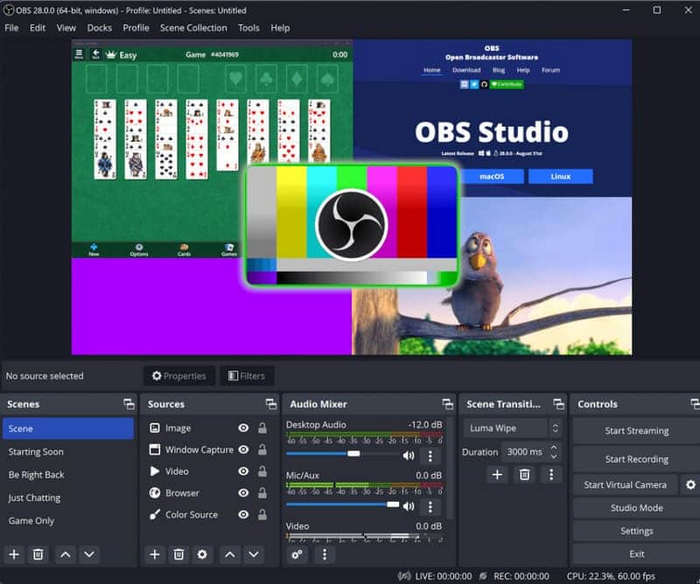
If you expect ample flexibility to edit and organize captured video or audio after recording, OBS Studio is recommended. First, as an open-source, free recording and live streaming tool, OBS supports multi-platform operation on Windows, Mac, and Linux.
It offers greater customization than other products, enabling not only screen capture, camera recording, and system audio capture, but also multi-scene switching and filter effects. Additionally, its color grading capabilities are exceptional.
In summary, it's particularly suited for users needing simultaneous recording and streaming—such as podcasters, educators, or online meeting hosts—since it includes a built-in streaming module. Crucially, despite its comprehensive features, this app for recording Skype video calls remains completely free.
Pros
- Completely free with no watermarks.
- High level of customization.
- Cross-platform compatibility.
Cons
- Steeper learning curve.
- Larger output file sizes.
Wondershare DemoCreator
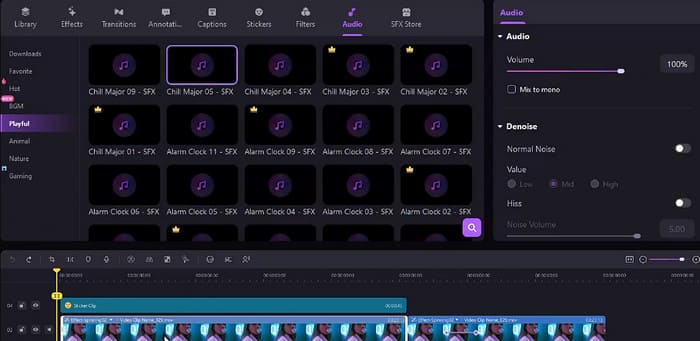
You may have finished recording a meeting, but the task is far from complete. Next, you need to isolate the spoken portions, extract key information, and transcribe it into text. Any background noise can disrupt this process. Fortunately, you can record and edit Skype calls more intelligently with Wondershare DemoCreator's powerful AI tools.
This webcam recorder captures screens, audio, and camera feeds while supporting automatic subtitles, AI teleprompters, background removal, and audio enhancement. Whether for instructional demos or meeting minutes, DemoCreator handles it effortlessly, enabling quick post-recording editing and annotation. This saves you significant time,
Pros
- Integrated AI video and audio enhancement.
- Supports caption generation and collaborative sharing.
- Multi-platform compatibility with intuitive operation.
Cons
- Advanced features require subscription unlock.
- Relatively high system resource usage.
Movavi Screen Recorder
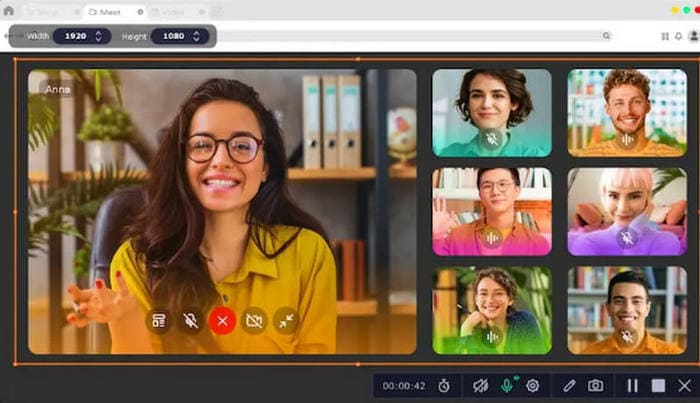
If you seek a balance between recording quality and ease of use, Movavi Screen Recorder is highly recommended.
This screen recorder captures nearly all screen activities, including Skype video calls, tutorial demos, or online meetings.
Synchronously record system audio, microphone, and camera feeds while supporting scheduled recording and mouse highlight features.
Both beginners and professionals can quickly get started and achieve smooth, high-definition video output.
Pros
- Simple operation with a clear, intuitive interface.
- Supports multiple recording modes and audio options.
- High-quality output with stable, lag-free performance.
Cons
- Free version has limited features and includes a watermark.
- Requires higher computer performance.
Part 3. Comparision Table
| Product | Platform | Type | Ease of Use | Audio & Video Quality | Editing Tools |
| FVC Free Screen Recorder | Online | Web-based | Easy | Good | Enough |
| Skype Built-in Recorder | Multi-platform | Built-in | Very Easy | Decent | Limited |
| Loom | Online / Desktop | Web plugin | Easy | Good | Moderate |
| VideoCandy | Online | Web-based | Easy | Fair | Basic trim |
| Aiseesoft Screen Recorder | Windows / Mac | Desktop | Medium | Excellent | Advanced |
| OBS Studio | Windows / Mac / Linux | Desktop | Complex | Excellent | Extensive |
| Wondershare DemoCreator | Windows / Mac | Desktop | Medium | High | Powerful |
| Movavi Screen Recorder | Windows / Mac | Desktop | Easy | High | Moderate |
Conclusion
Alright, after reviewing these 8 Skype call recorders, have you found your preferred choice? Whether you're looking for a fast-starting, convenient online tool, a platform-native recording solution, or a more stable desktop application with advanced editing features, you can select the perfect fit from these 8 options.Additionally, the pros and cons of each, along with some operational guides, should help you complete your recording tasks seamlessly.
-
 How to Record Audio with VLC Media Player: A Complete Guide
 In this post, you will learn how to record audio with VLC Media Player. This article has detailed steps and will recommend one of the best alternatives to VLC.
-
 Top 7 Best Free WMV Video Recorder: A Review of the Best of the Best
 Discover the best on how to convert Webex recording to WMV by using screen recorders that you can find over the web.
-
 Fraps Screen Recorder Review: Is it Still Worth It?
 Is Fraps Screen Recorder on your list, and want to know more about it? Read this in-depth review and learn what it is, how to use it, and if it is worth it.
